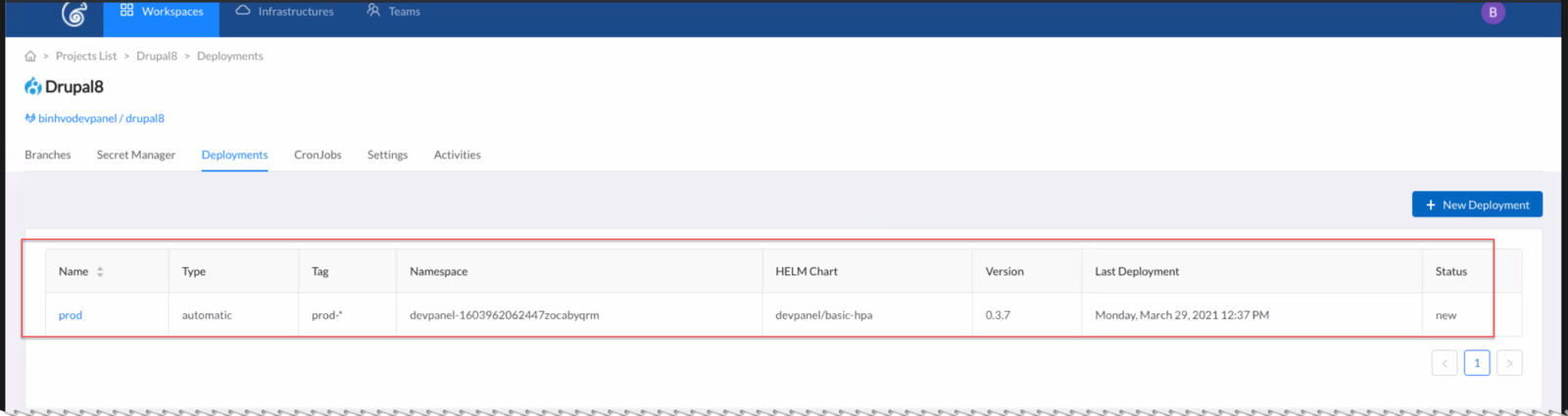
There are many steps to creating a deployment. We will walk you through them here
Start with an Application
Create your application first... here, we're starting with a Drupal 8 application.
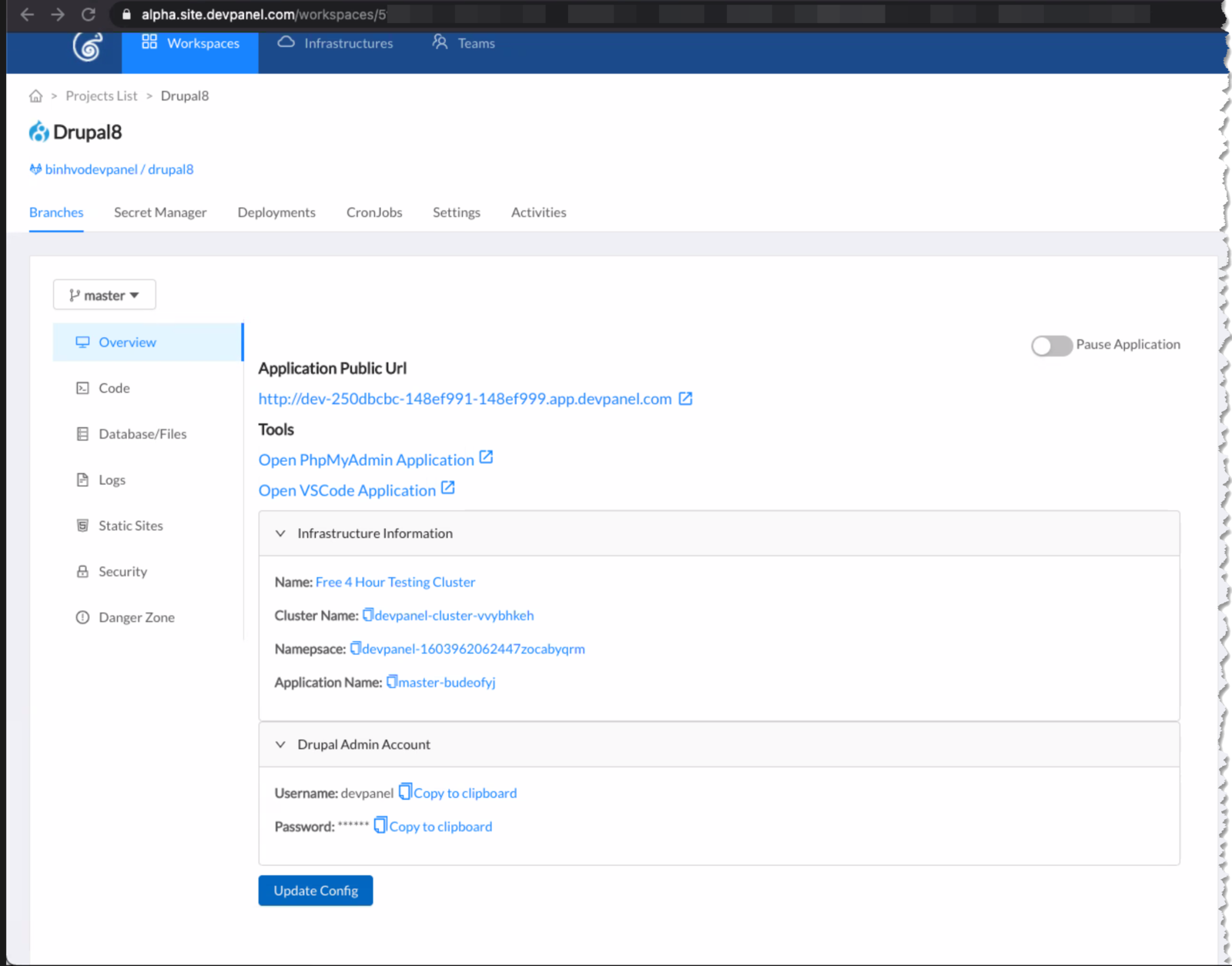
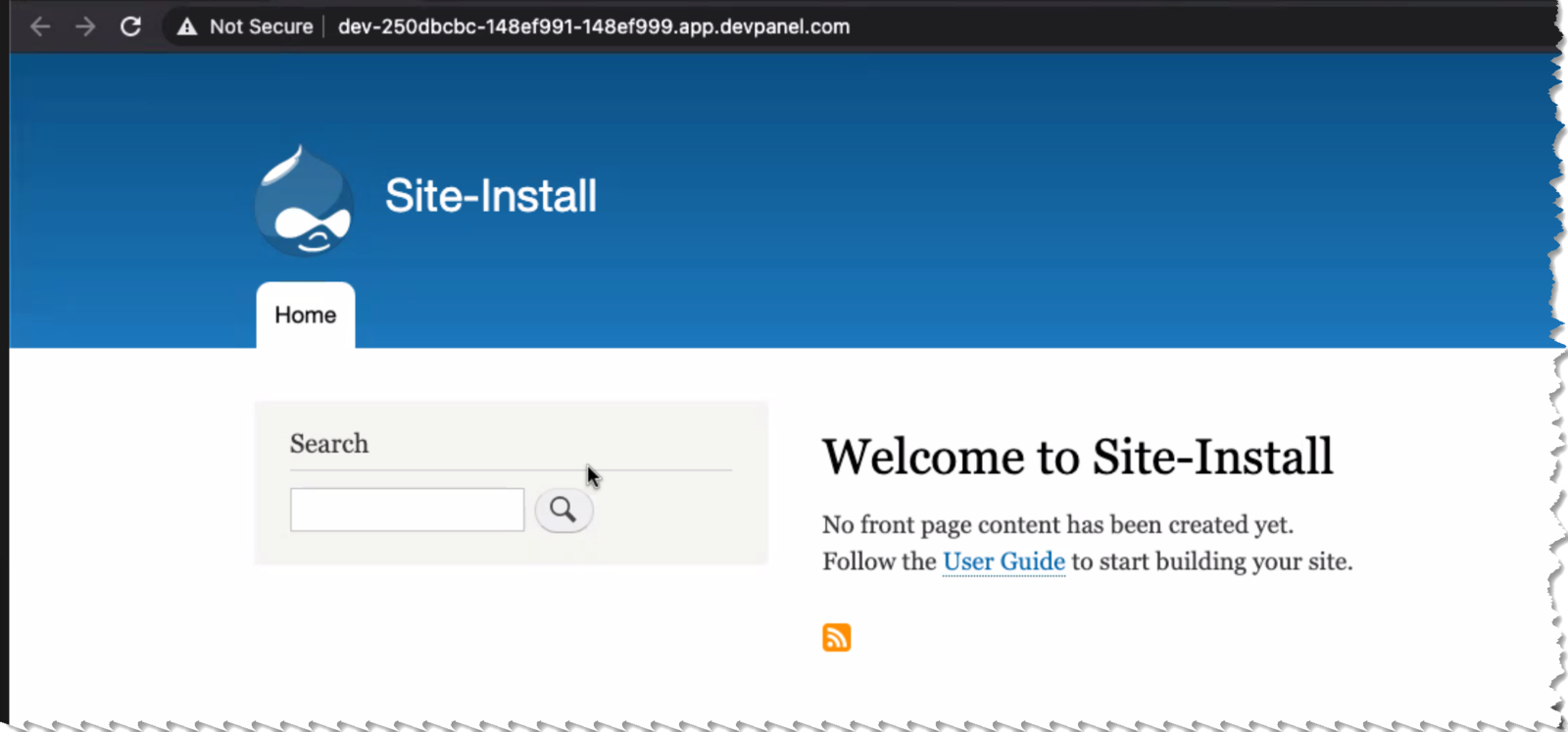
Customize it to your liking, and make sure it works...
Setup Secrets
Create a Secret Set
Go to the Secret Manager and create a secret set

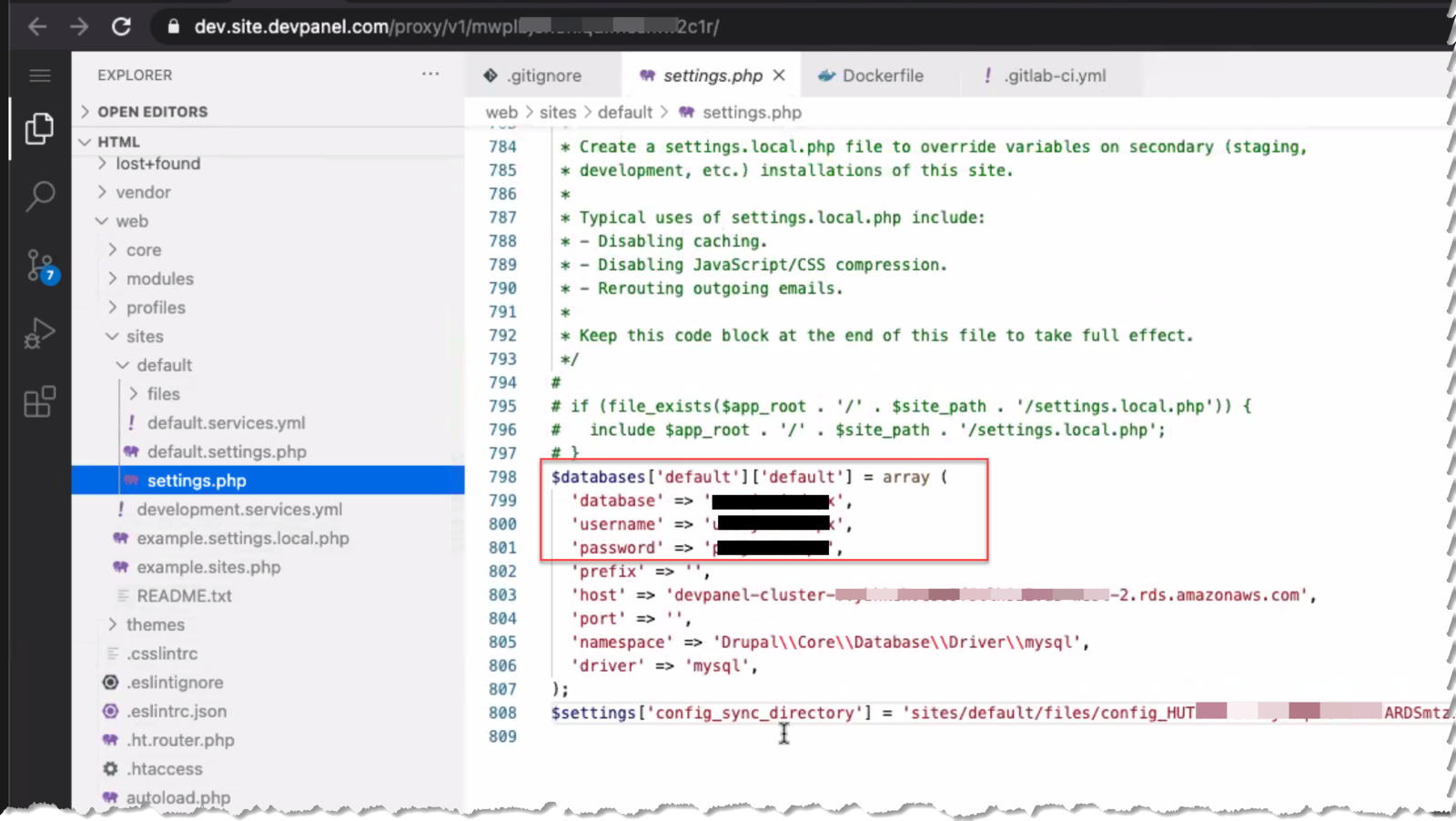
Gather Secrets
Go through your application and get all the key, value secret pairs that your application is using... for example:
Transfer Secrets to the Secret Set

Create a Deployment
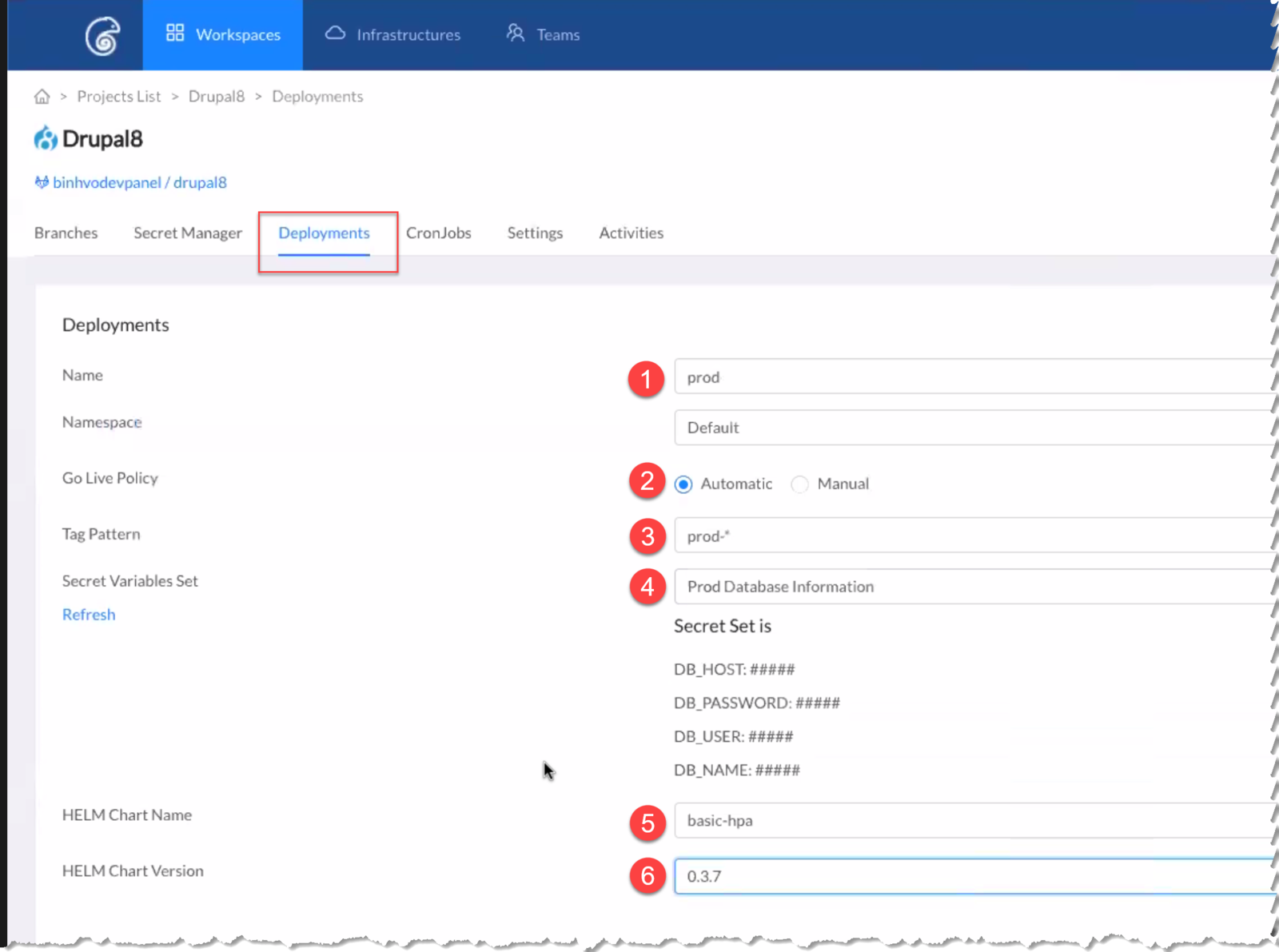
- Deployment Name should be unique. Leave namespace to "Default"
- Set Go Live Policy to Automatic or Manual. Manual is safer and lets you preview new builds before rolling them out. With Automatic, new releases that match the tag are automatically rolled out.
- Tag Pattern for matching. You can set up many named deployments with each watching a different tag pattern. If your application release on the registry matches this pattern, then that release is considered part of this deployment.
- Secret Variable Set. Select the set from the drop-down and verify that the variables you're planning on using appear in the set.
- There are many HELM charts to choose from, but for auto-scaling apps, you'll want to use the "basic-hpa." HPA stands for Horizontal Pod Auto-scaler.
- Pick the latest version - unless there's a problem with your app deployment and you want to try a previous version of the HELM chart.
HELM Charts
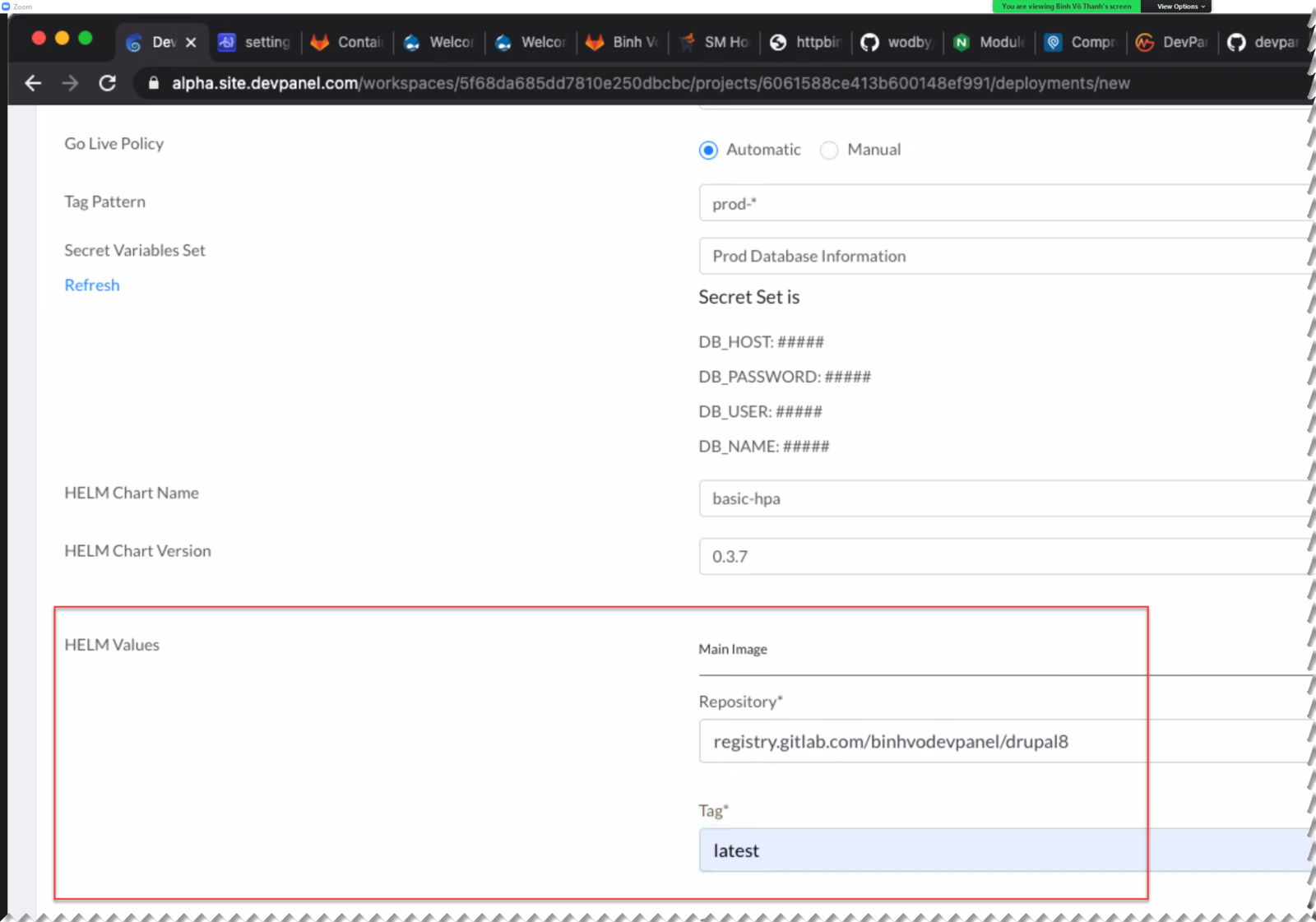
Provide the values for HELM Chart that will be used to create the deployment.
The number of questions will vary depending on the HELM chart you chose,
Container register info
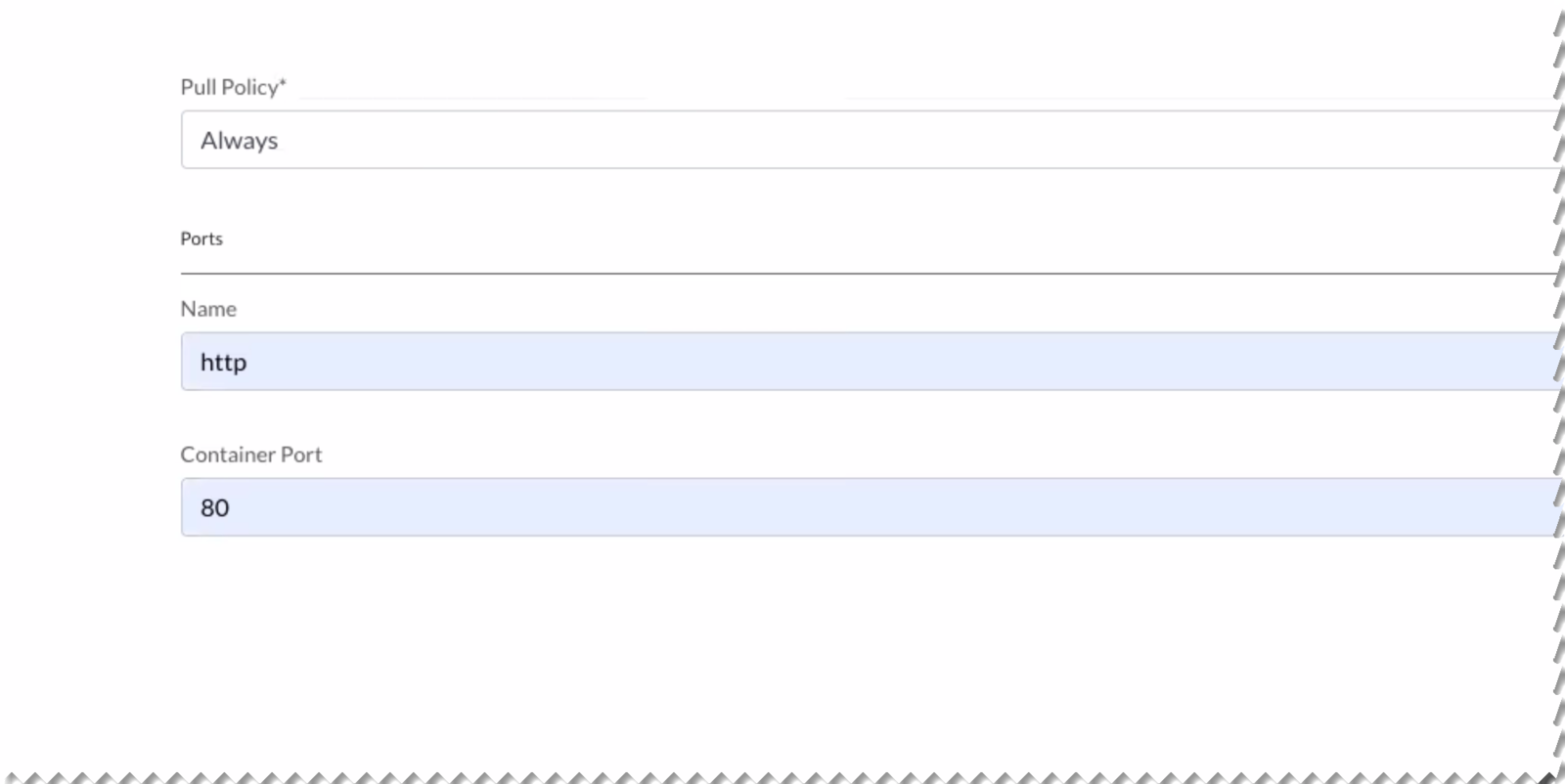
Pull Policy and Ports
Environment Variables
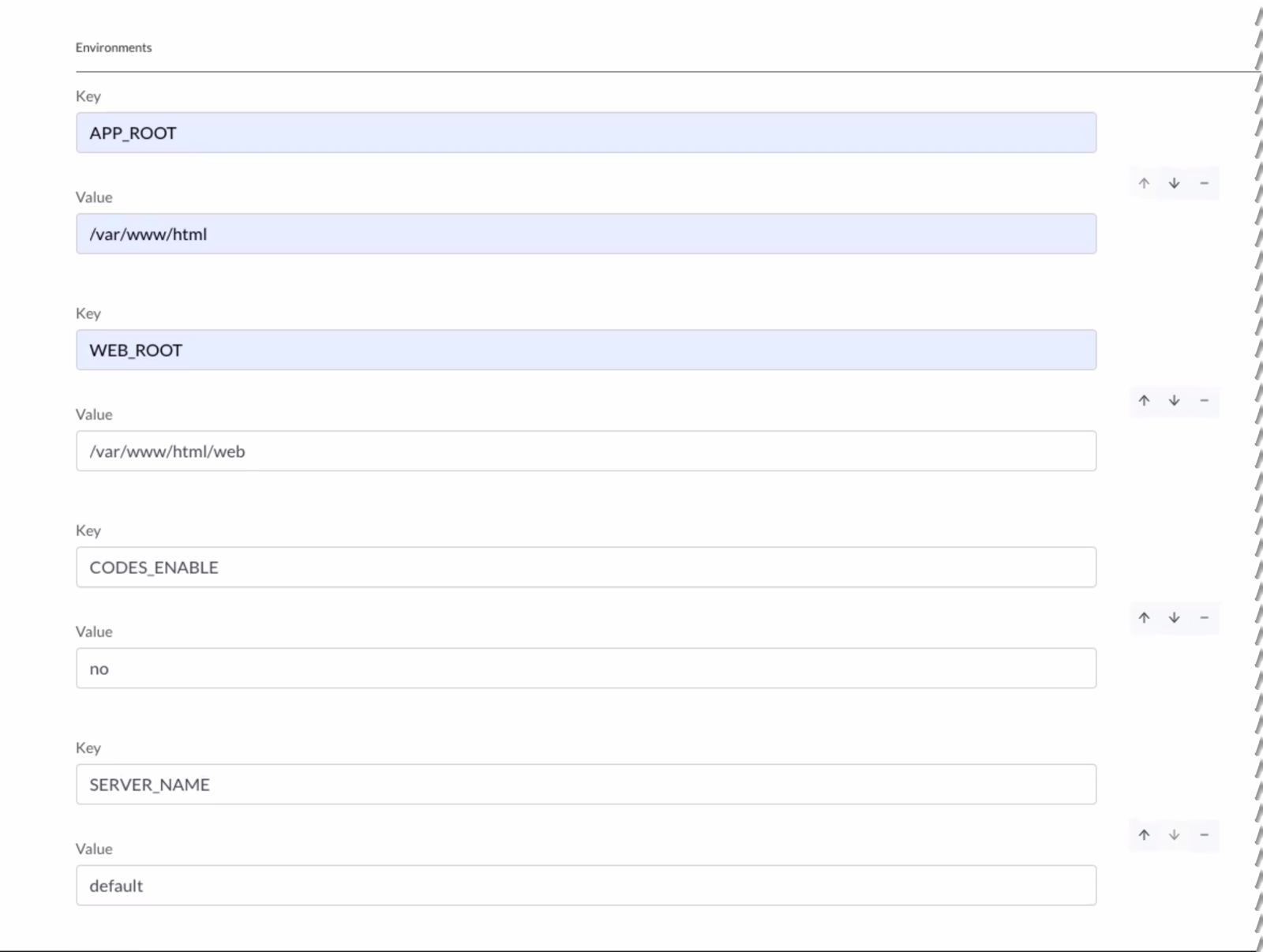
The "CODES_ENABLE" variable controls inclusion of VS CODE (CODE SERVER) into the deployment pods... For production deployments, you should set this to "no"; for dev and test deployments, you may set this to "yes"
Pod Resources

Optional Parameters
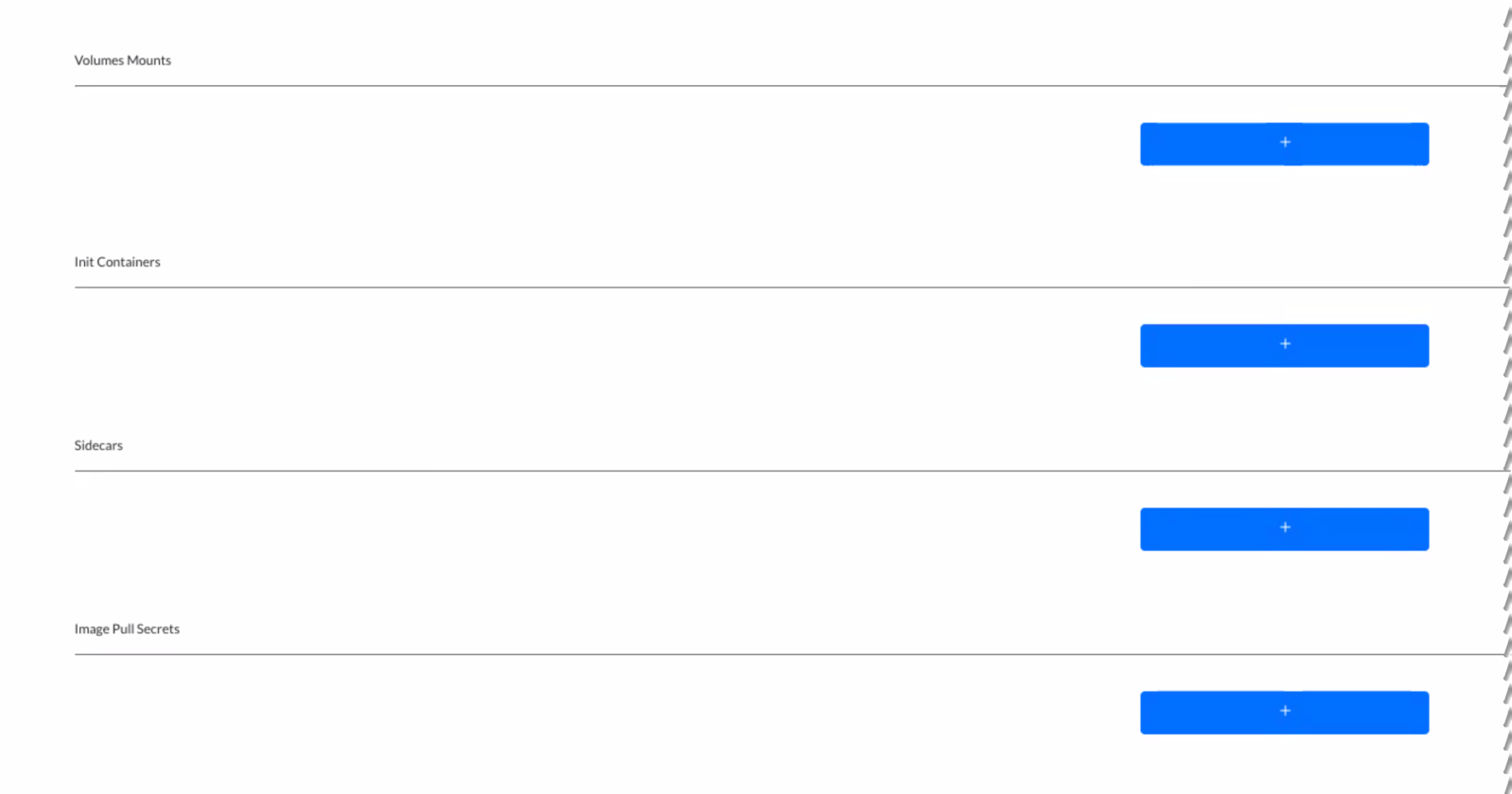
Specify Volume Mounts, Init Containers, Sidecars, and Image Pull Secrets here...
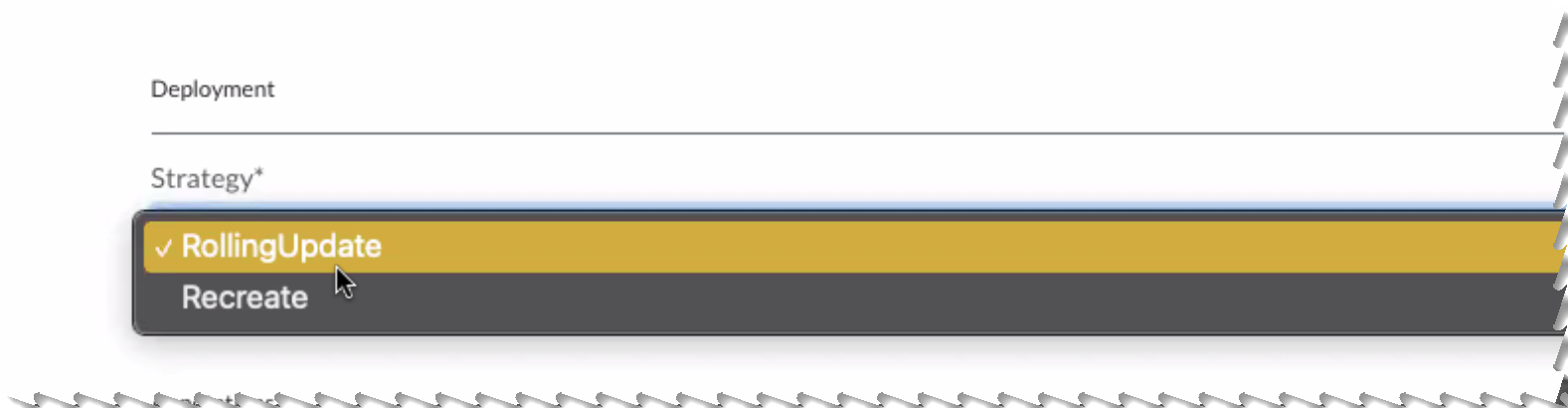
Deployment Strategy
Pick the deployment strategy you wish to use... you can select "Rolling Update" or "Recreate"; These are both standard Kubernetes deployment strategies - more info online.
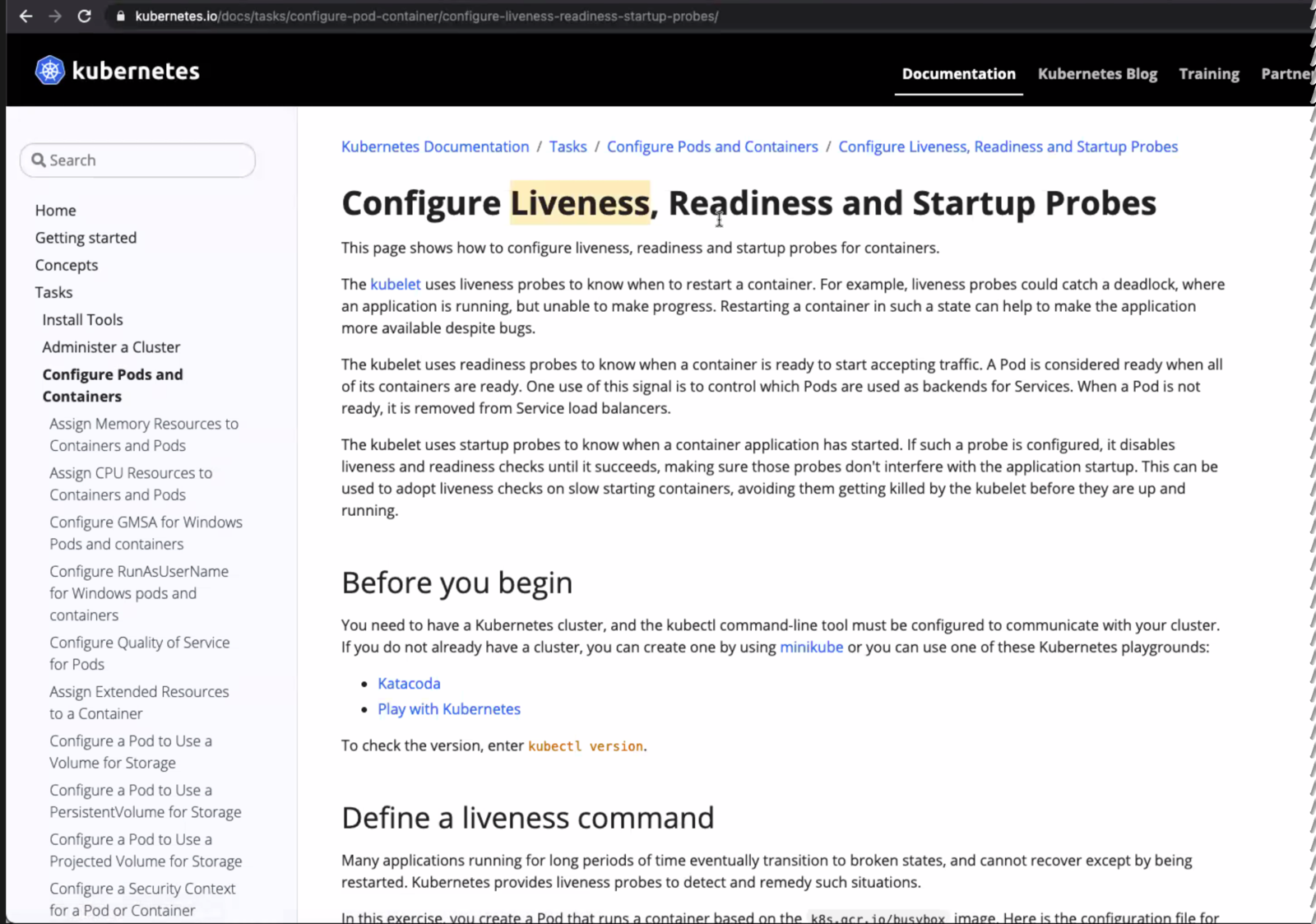
The system, by default, does not check for Liveness and Readiness - you need to configure your application to do this if you want this.
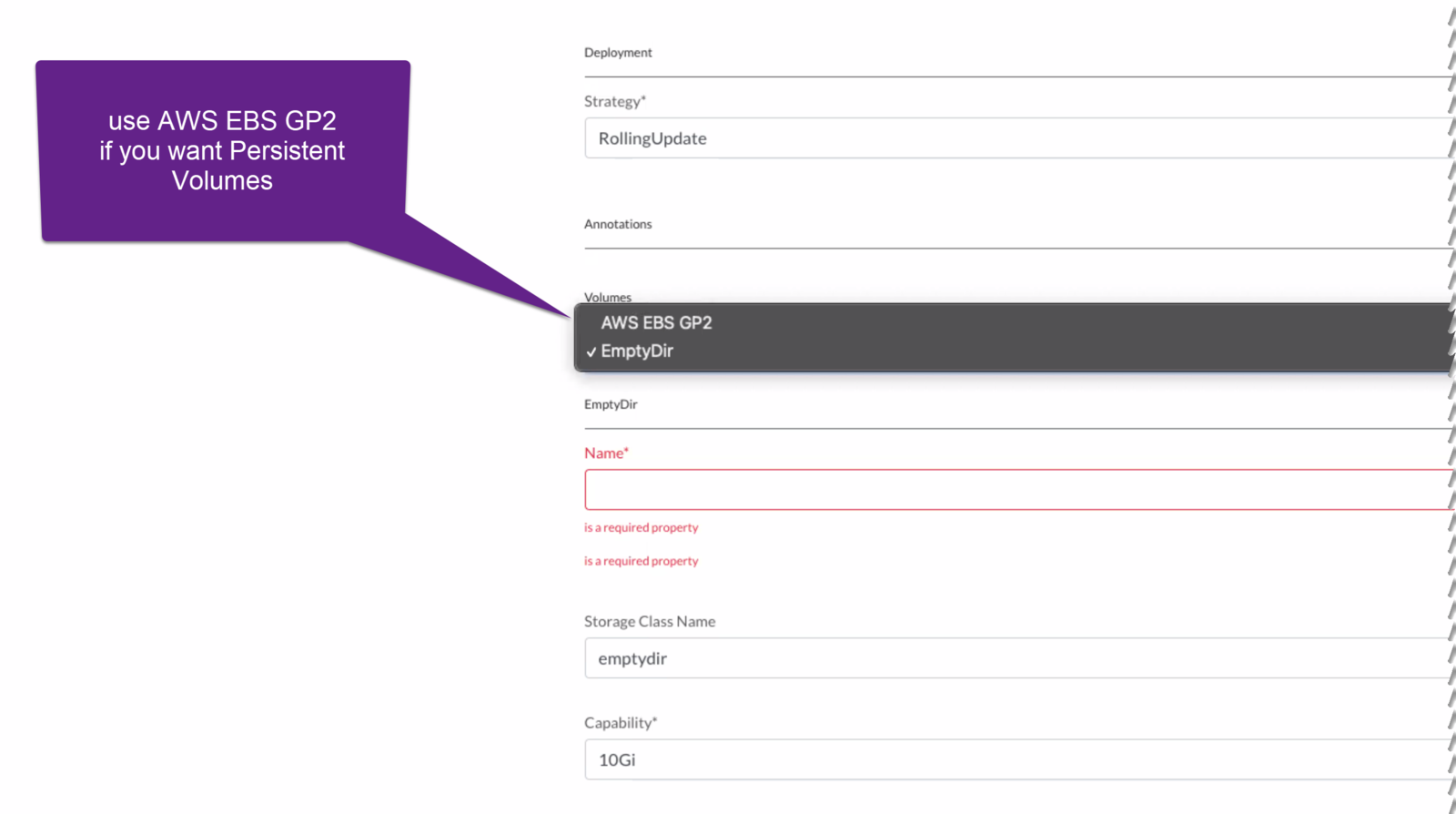
Persistent Volumes
Select "AWS EBS GP2" if you want Persistent Volumes in your pods... Selecting "EmptyDir" will flush the data as pods are destroyed.
Horizontal Pod Autoscaler
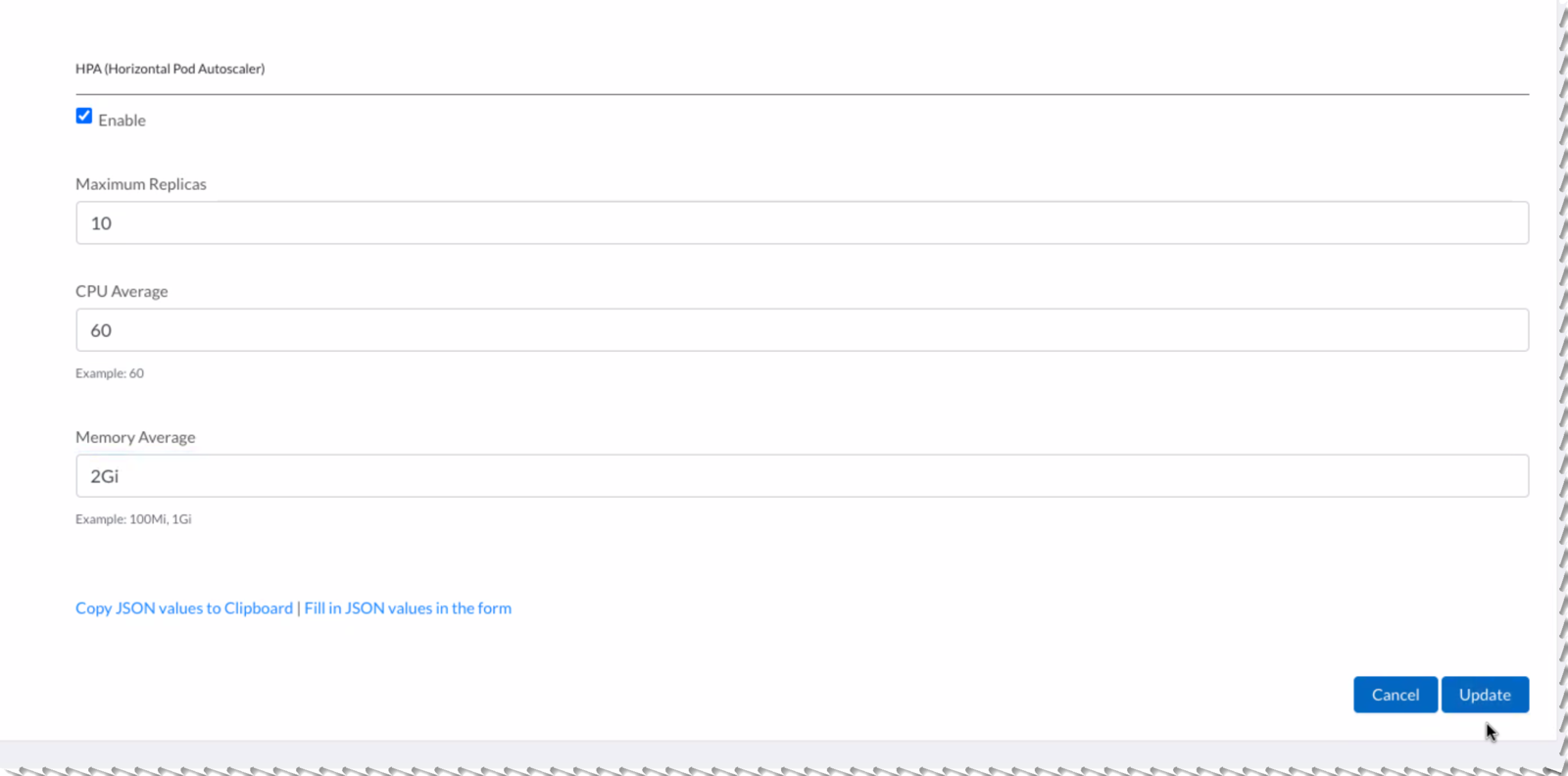
Here's a brief description for each parameter:
- Max Replicas: the maximum number of pods that autoscaler is allowed to scale up to.
- CPU Average: the CPU threshold at which new pods will be created. If this is set to 60, for example, then when the average CPU usage of the cluster reaches 60%, the HPA will start creating new pods.
- Memory Average: like CPU threshold, this is the Memory threshold.
Save your work
If you like, you can copy all the information you provided to the clipboard - to save it offline.
Click Update to save the form. This data will be used to generate the HELM charts for your deployments.

On the Deployments page, this is how the newly created deployment shows up...