Saving your code back to git.
Saving your work
When using DevPanel's browser based VS Code IDE, you can save you code using point-and-click controls or using the git cli.
Point and Click
After making changes to your code, follow these steps to commit your code to your git repo.
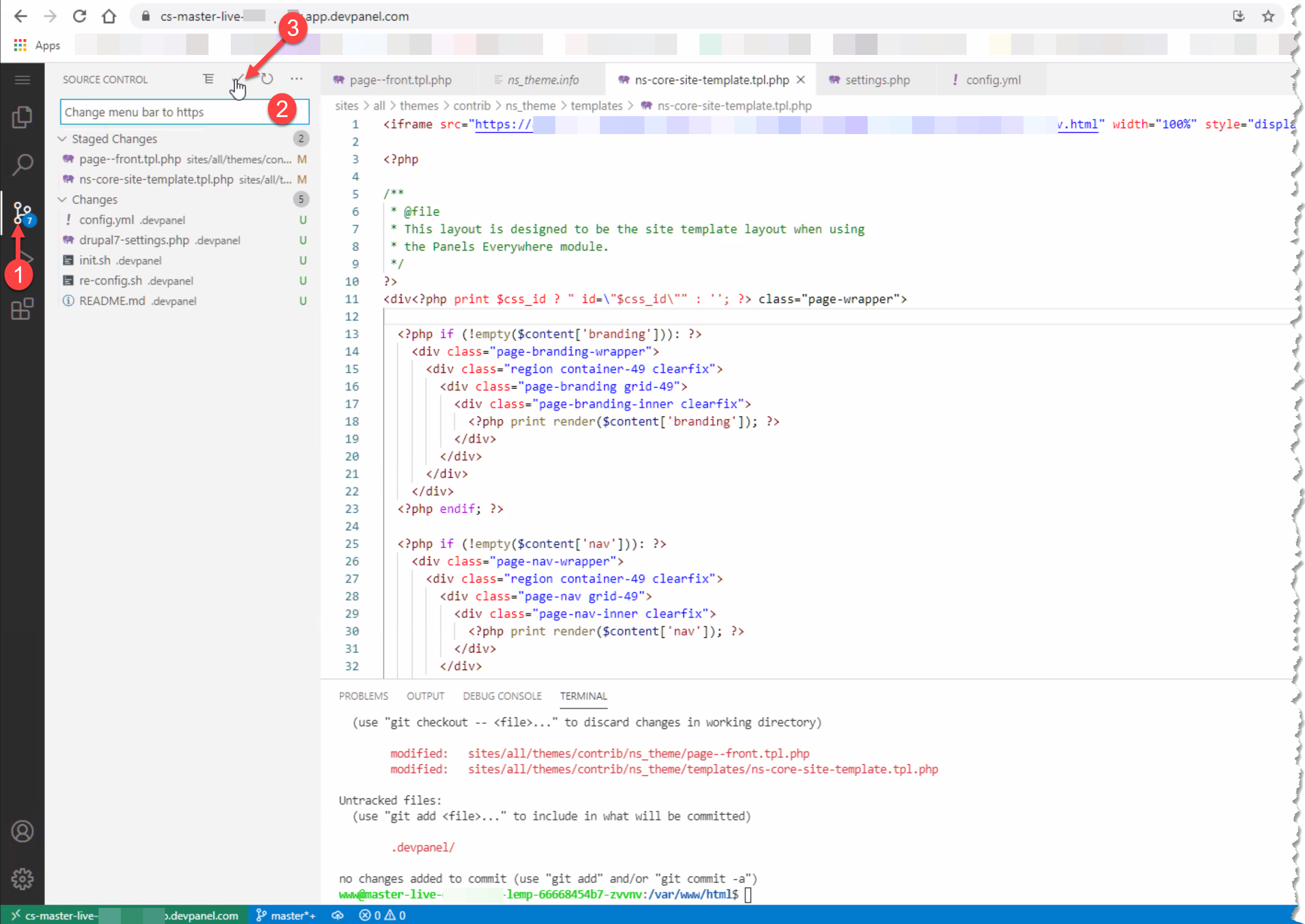
- Click on the Git Branch icon
- Enter your commit message
- Click the Checkmark and confirm
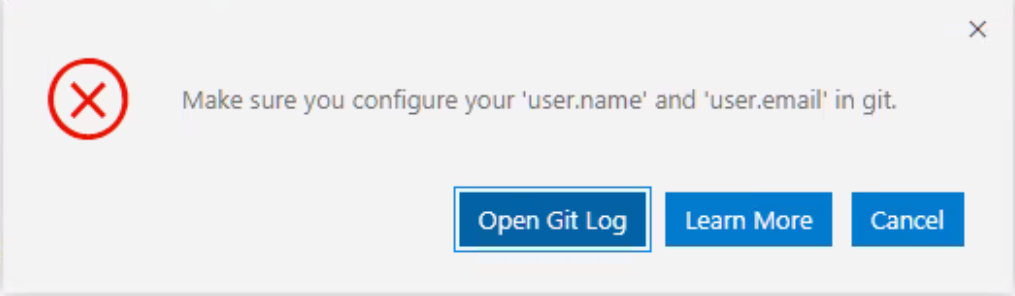
If this is the first time you're saving your code using this application's VS Code IDE, then you'll have to configure Git first.
If you get the following error, then you'll know that you have not cofigured git yet.
Configuring Git
In order to configure Git, you'll have to use the following commands...
git config --global user.name "Mona Lisa"
git config --global user.email "mona.lisa@example.com"
Using CLI
To save your work using the CLI on the Bash terminal, you can use the following command...
git pushIf you get an error, you might have to define the upstream orgin. In the example below, we're using the following command:
git push --set-upstream origin master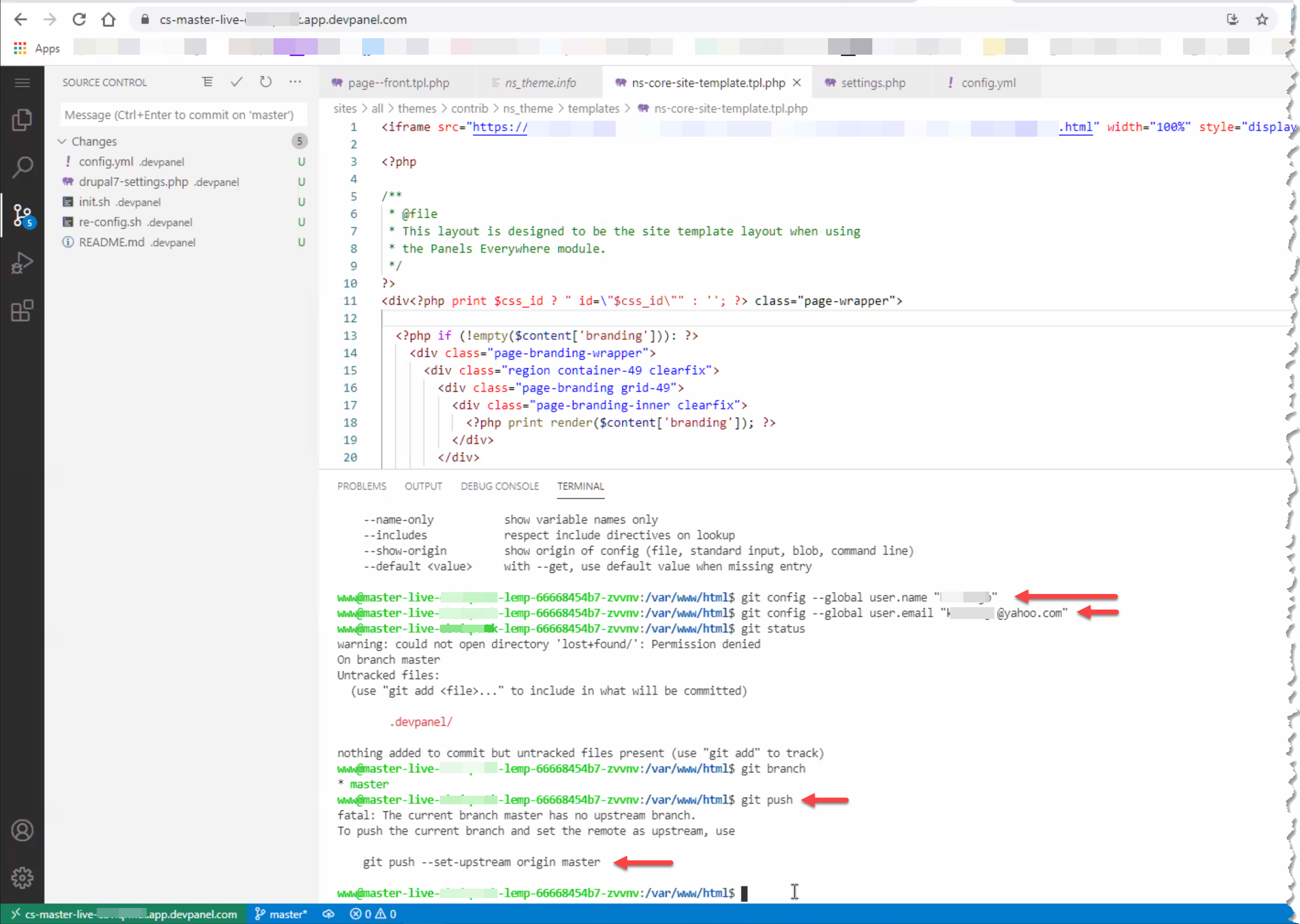
Confirm commit
It is always a good idea to double check that your code changes were saved.
Always double check your repo to make sure you can see your commits and code changes.