How to import existing sites with databases and files
Template Apps
If you want to create a template application that others can import, then start by putting the source tree of your app in a repo in one of the supported Git providers.
If you're creating template apps with small DB and Files that can easily fit in a git repo, then simply commit your DB and Files with your code in TGZ format in the following path in your repo:
/.devpanel/dump/db.sql.tgz
/.devpanel/dump/files.tgz
When creating your app, select "Import DB and Files from Git" and DevPanel will automatically select these files for you.
On the dashboard, you'll also have to specify the old hostname/domain name that's referenced in these files (if any) so that we can run a mass-change for you on these files before importing them.
Please make sure that the files are in the correct format.
Preparing to Import an App
There are generally three parts of the applications that you'll need to import.
- Code
- Database
- Files
The maximum default size for applications is set to 2GB. If you're trying to import an application larger than that, please contact support.
Code
The code has to be in a repo that you have access to and in one of the supported Git providers
- GitHub
- Gitlab
- Bitbucket
Files
These are static files for your application/site like images, PDFs, etc. Many times these files are uploaded through the application's web ui too... Therefore these files are generally in a web server writable / world readable directory under doc root.
These files can be imported via:
- Git (using the template method)
- AWS S3 (by uploading files into AWS S3 first and providing a link)
We require this file to be in the TGZ format and with the .tgz extension
Database
Like files, you'll need to import a database dump into DevPanel.
For MySQL, you can use the following commands to create a dump of your database and format it as a TGZ file...
On a MAC, use the following commands... note --disable-copyfile option on tar:
mysqldump -uUSERNAME -pPASSWORD DATABASENAME > db.sql
tar --disable-copyfile czvf db.sql.tgz db.sql
rm db.sql
On MAC, this will also work: COPYFILE_DISABLE=1 tar -czvf db.sql.tgz db.sql
WARNING: If you do not use the COPYFILE_DISABLE=1 or --disable-copyfile option with tar on a Mac, you will end up with a lot of (._) files in your tarball and will result in an unsuccessful /failed import of your database. For more details on this problem, see the following articles:
On Linux and Windows WSL, the following commands should work fine:
mysqldump -uUSERNAME -pPASSWORD DATABASENAME > db.sql
tar czvf db.sql.tgz db.sql
rm db.sql
Upload files to a AWS S3 Bucket
DevPanel creates infrastructure in your AWS account. As part of that infrastructure, it will create an emply private S3 bucket in your account as well.
This is where you'll upload your files first before importing them into your apps.
Before uploading your files, make sure they're in the correct TGZ file format with the .tgz extension.
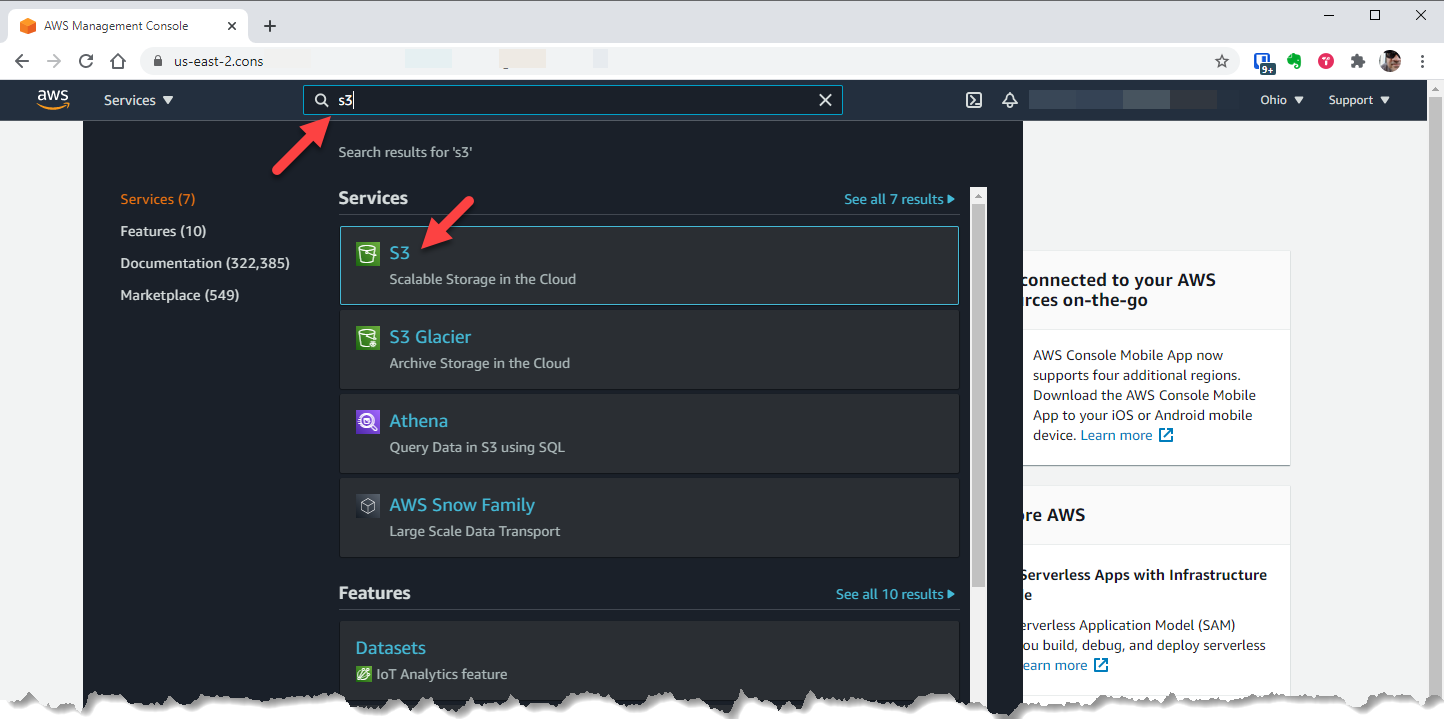
Next, login to your AWS account and navigate to AWS S3... Type "S3" in the search bar and select "S3" from the drop-down menu.
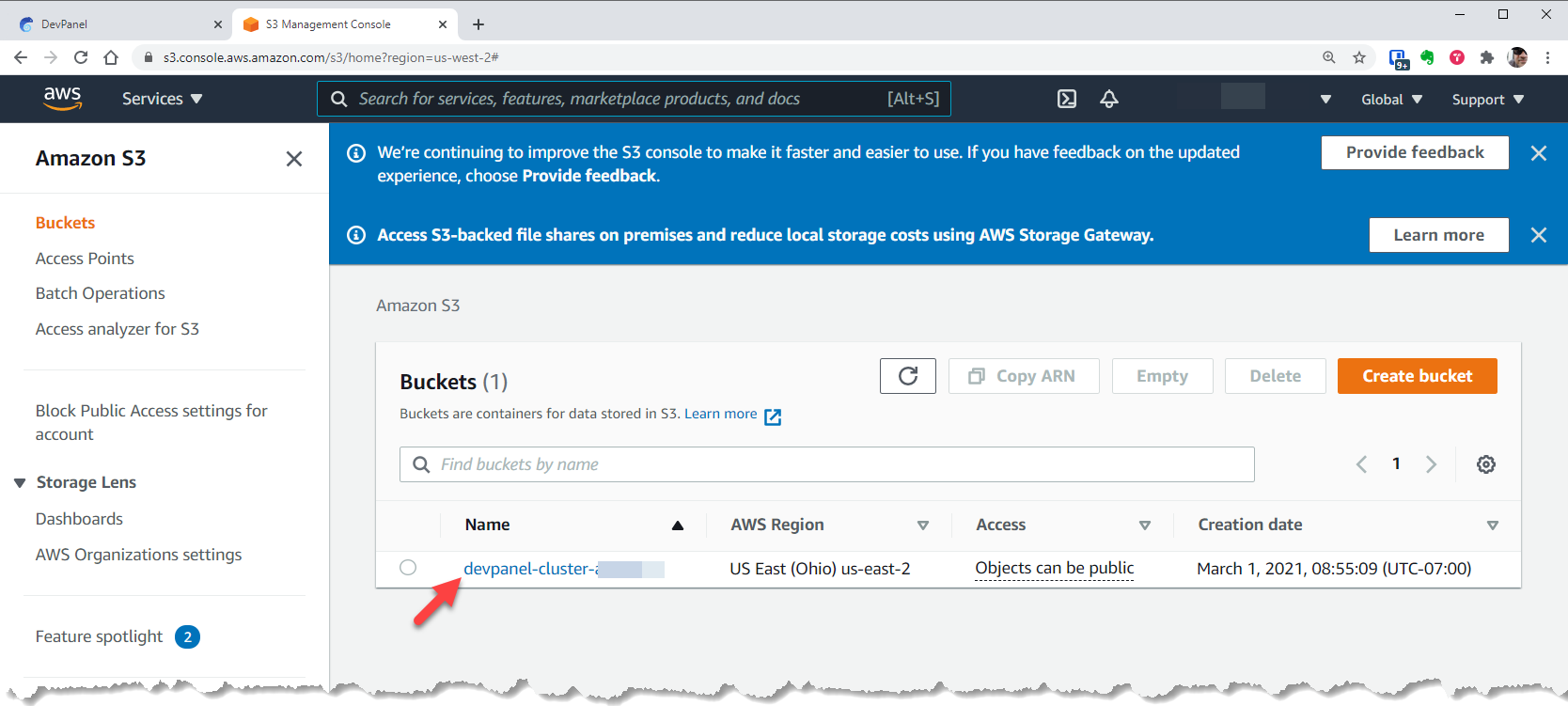
On the S3 page, select the bucket name that starts with "devpanel-cluster"
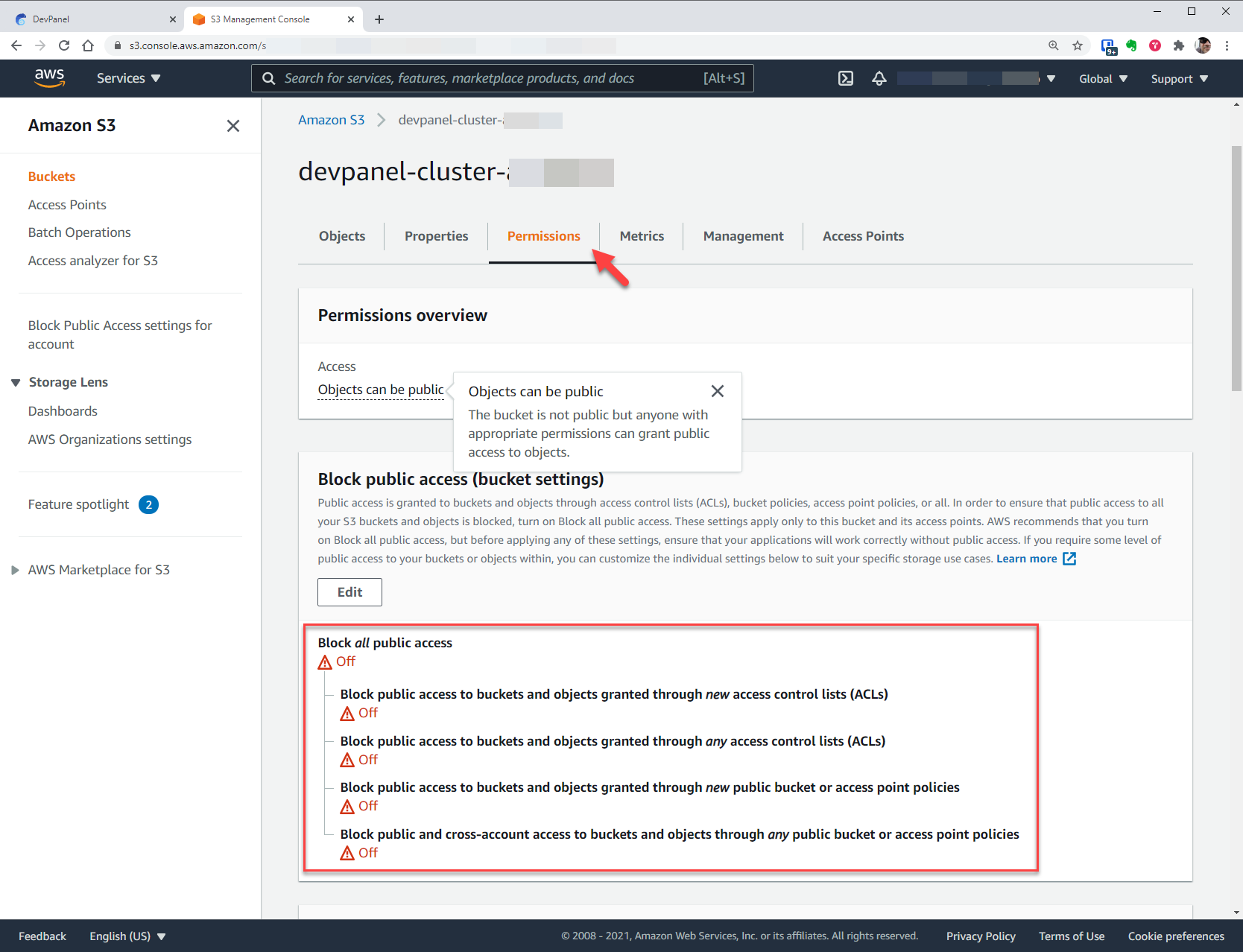
Once inside the bucket, click on "Permissions" and verify that this bucket is private and that all public access is blocked.
Next, return to "Objects" and select "Upload"
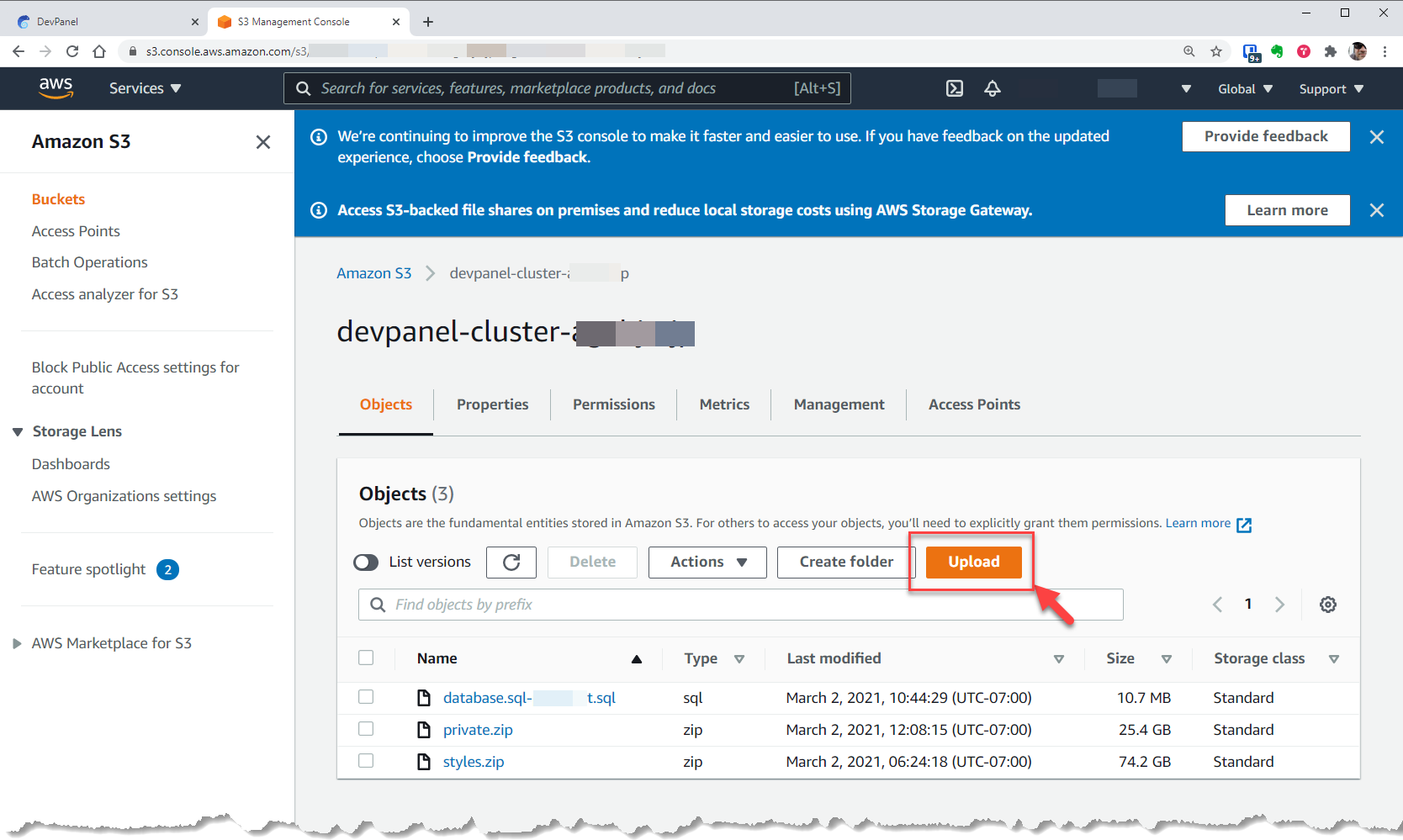
NOTE: the .sql file (and other .zip files) in the above image are not related to this walkthrough. They just happened to be in this bucket at the time of the screenshot.
and then "Add files"
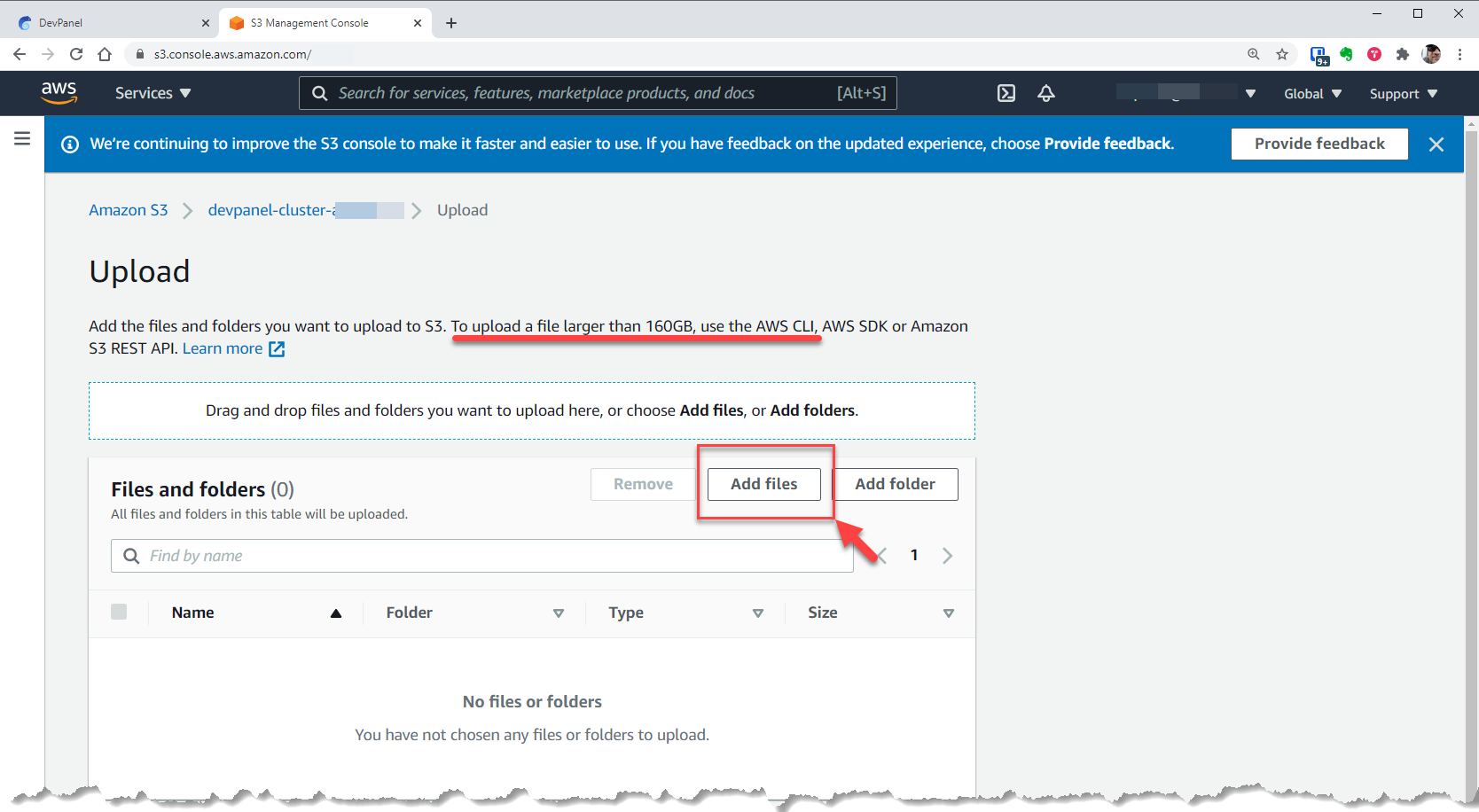
If the files you're trying to upload are larger than 160GB, then follow the instructions provided by AWS to upload large files.
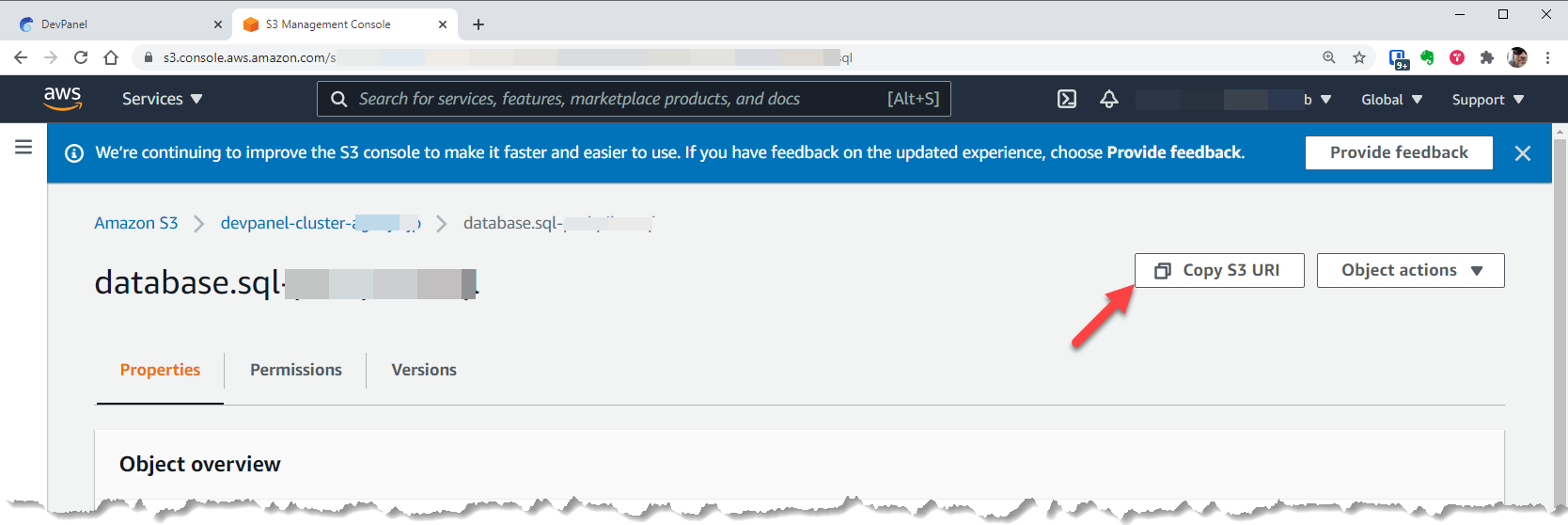
Once your files are upload, click on the file name and click the "Copy S3 URI" button and save it in a safe place. You will need this URI (URL) when importing your application in DevPanel.
Import your App with Files and DB
When you're ready to create your app on DevPanel, you'll be prompted as to what database and files you want to use.
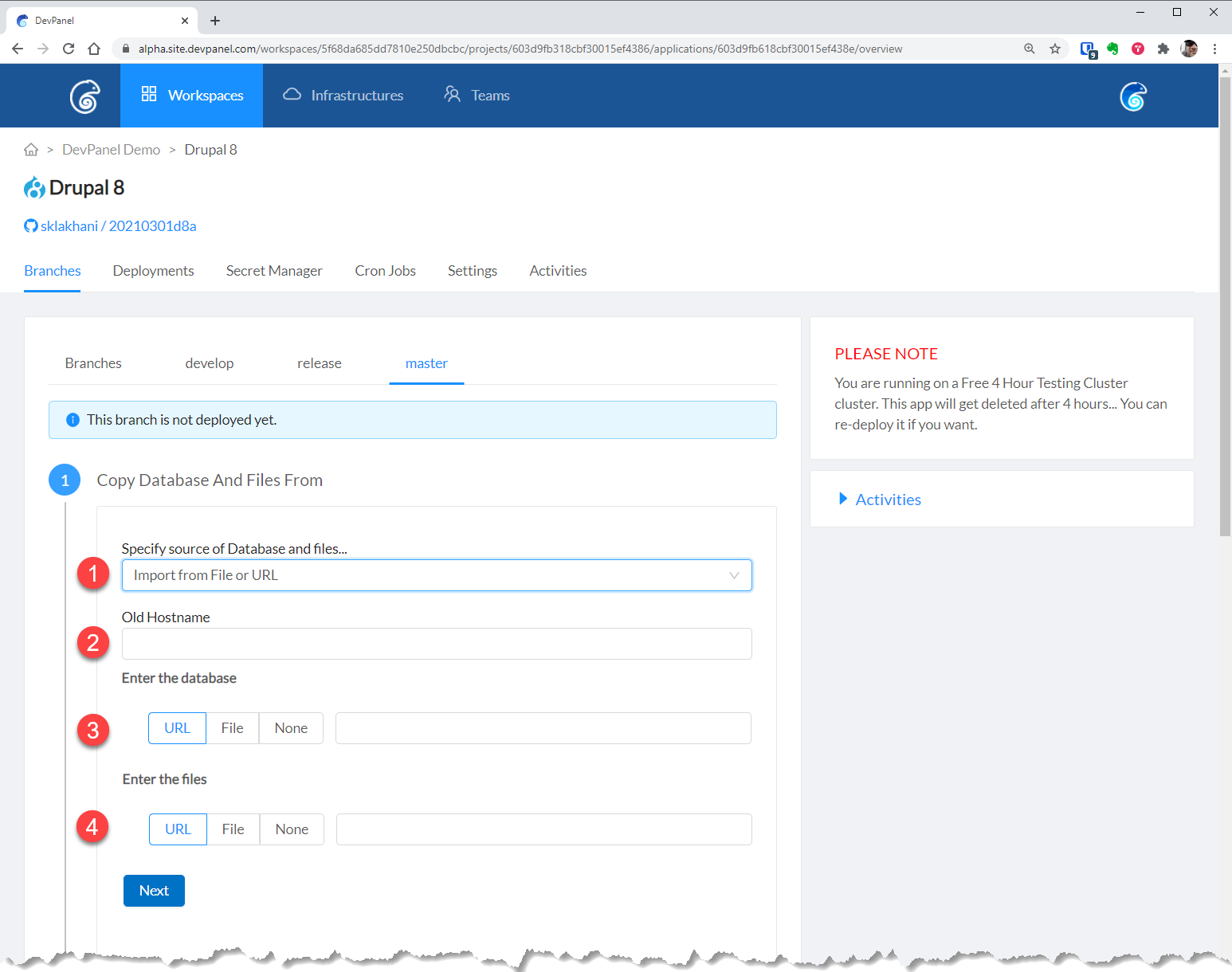
Select
- Import from File or URL
- Enter the Old Hostname (where the database was dumped from); eg:
example.com - The S3 URI for the db.sql.tgz file
- The S3 URI for the files.tgz file
Then click Next.
The application/site creation time may vary depending on the size of the database and static files that you're importing.