How to create and manage project resources
Resouces
How to create and manage Project Resources
Resources are things that your applications and websites may need to function... for example:
- S3 Buckets
- Memcached service
- SOLR Service
- SSL Certificates
Creating Resources
To create resources, go to the Resources page in your project:
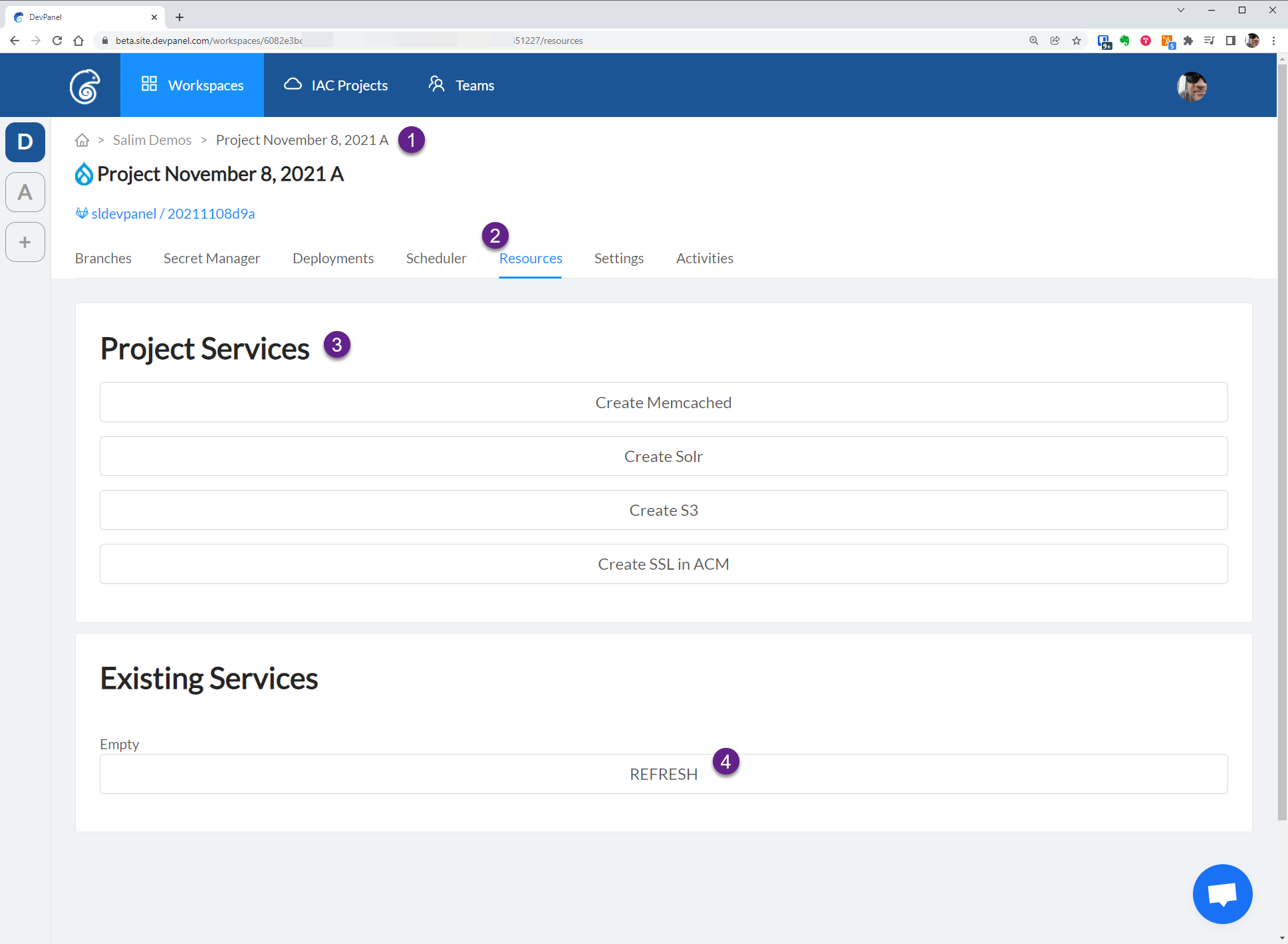
Here are some things to note about resources:
- Every project has a Resources page...
- all applications in that project can share one resource (if you want)
- you can create multiple instances of some resources (like S3 Buckets) but not all resources
To get to this page,
- Go to the project page
- Select the Resources tab
To create a resource,
- Select the resource you want to create from this list...
If you don't see the resource you're looking for, contact support.
To see list of resource already in the project,
- Click the "REFRESH" button
You will also need to click the "REFRESH" button a few minutes after you create a resource since it will take time to create that resource and the page will not reload by itself.
Accessing Resources
Once the resource is created, the resource access info will be displayed on the same page...
For example, here are the resource details for an AWS S3 Bucket:
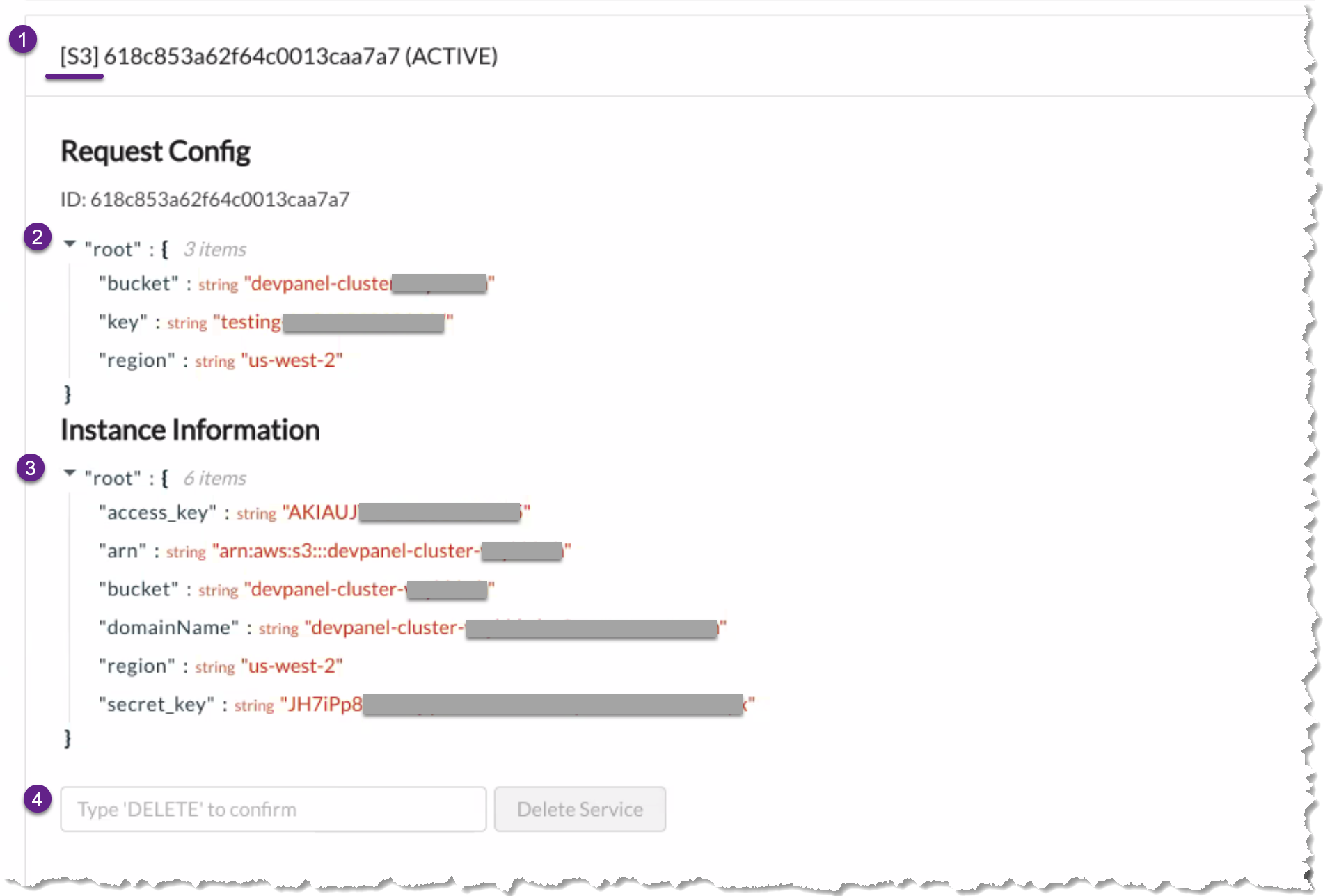
- Resource ID
- Resource details
- Resource access info
- Button to delete the resource
Sensitive information is displayed on this page... like access keys and secret keys.
Armed with with information, you can next configure your application(s) to consume these resources.
Consuming Resources
Each application will have its own way of consuming these resources. For some applications, you'll have to enter the resource information from the UI, for others you might have to use a YAML file or add variables to a settings file.
As an example, we made the following changes to the settings.php for Drupal to consume memcached and S3 resource.
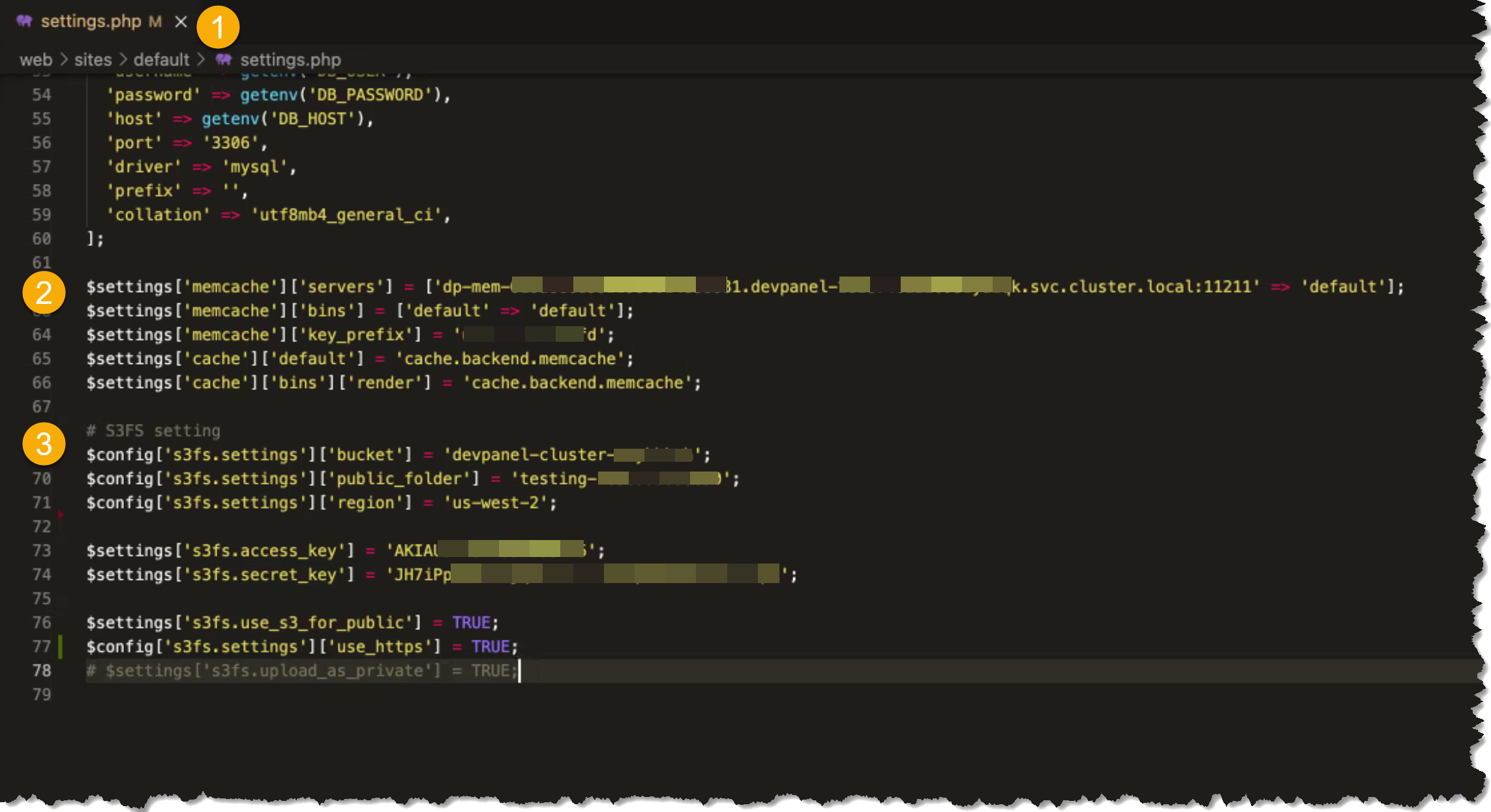
Sample Drupal Configuration
- edit the
settings.phpfile - add these lines for memcached
- add these lines for S3 + configure the S3FS module in Drupal
# S3FS setting
$config['s3fs.settings']['bucket'] = '<devpanel-cluster-xxxxxxxx>';
$config['s3fs.settings']['public_folder'] = '<testing-0000000000000>';
$config['s3fs.settings']['region'] = '<us-west-2>';

$settings['s3fs.access_key'] = '<ABCX123YZ123ABCX123YZ123>';
$settings['s3fs.secret_key'] = '<random-cifQDNRF6dy6DZRTrtK6WVKBpL8>';

$settings['s3fs.use_s3_for_public'] = TRUE;
$config['s3fs.settings']['use_https'] = TRUE;
# $settings['s3fs.upload_as_private'] = TRUE;
In addition to modifying setting/yaml files, you may have to use the UI to reconfigure the application as well. In Drupal, for example, you may have to add and configure the S3FS module as well.
Deleting Resources
You can delete resources manually (as shown above) but it is important to remember that resources are automatically deleted as well when you delete the project.
Deleting a project will automatically delete all its resources!