Configuring AWS S3 to work with Drupal
From https://www.drupal.org/project/s3fs:
S3 File System (s3fs) provides an additional file system to your drupal site, which stores files in Amazon's Simple Storage Service (S3) or any other S3-compatible storage service. You can set your site to use S3 File System as the default, or use it only for individual fields. This functionality is designed for sites which are load-balanced across multiple servers, as the mechanism used by Drupal's default file systems is not viable under such a configuration.
In this article, we will show how to configure Drupal's s3fs to serve public files from an AWS S3 bucket created by DevPanel.
Select an application
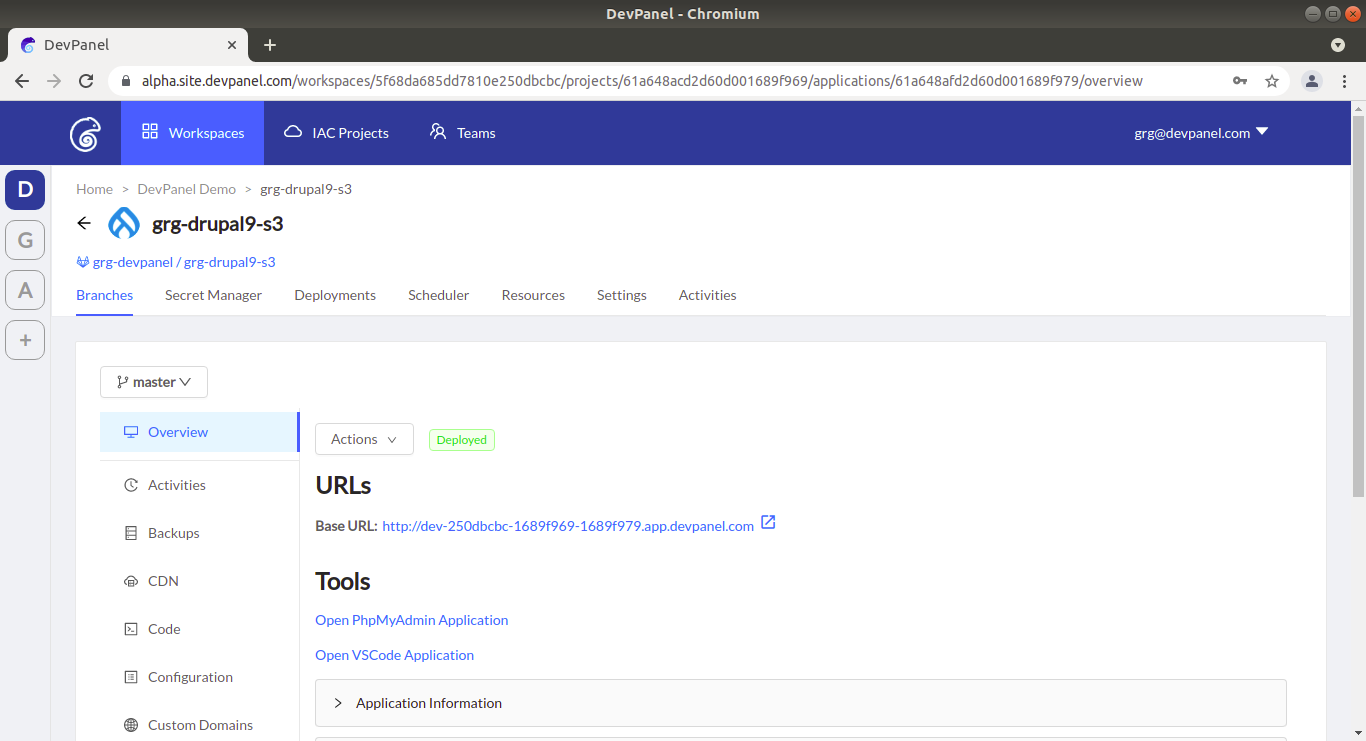
In this example, we will use the following Drupal 9 application:
Creating an S3 bucket for your application
Creating an S3 bucket is similar to creating a Memcached instance. Please follow the same steps as described on the Memcached page, but choose S3 instead of Memcached.
Once the S3 bucket is created and becomes ACTIVE, expand its "Request Config" and "Instance Information" in the "Resources" tab by clicking on the green arrows to the left of the word "root" marked with (1) and (2) on the screenshot below:

When expanded, the information about the S3 bucket will look like this:
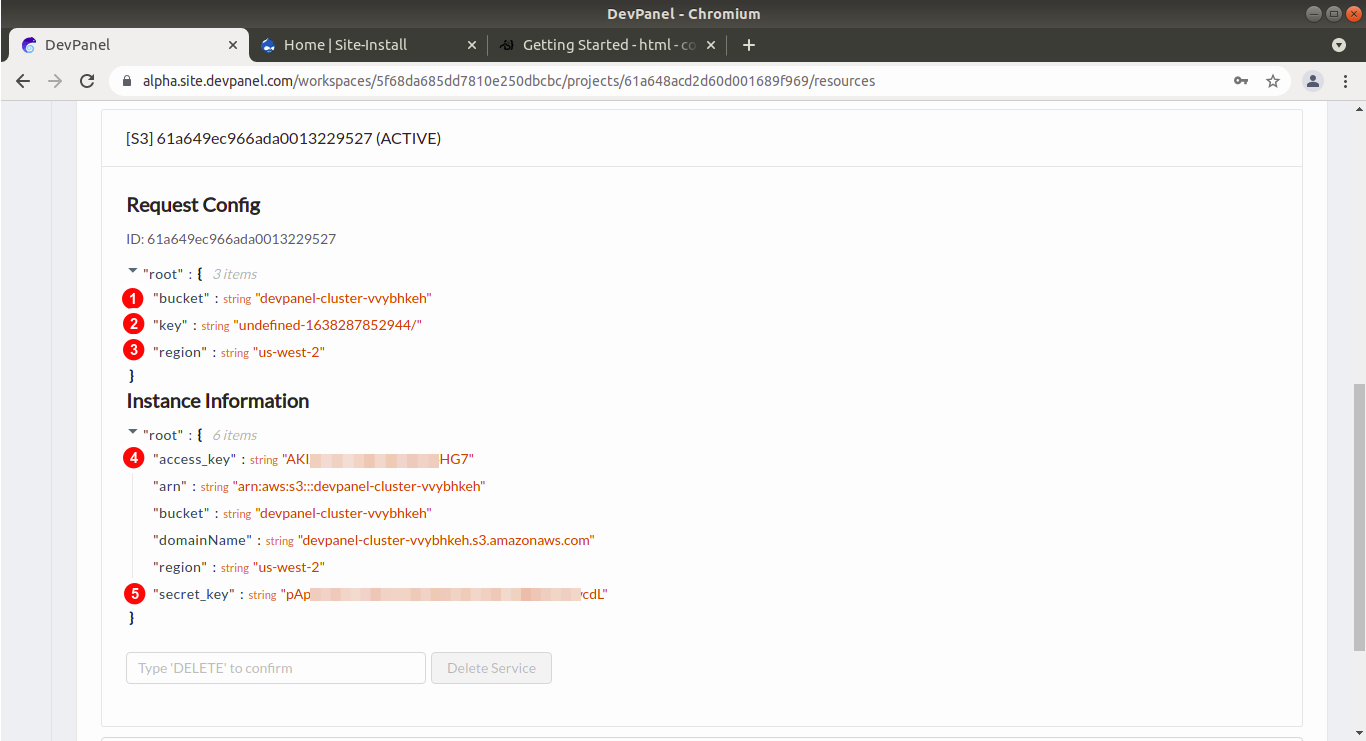
You will need the following values for copy/pasting them to Drupal's settings.php file in one of the following sections:
bucket(S3 bucket name)key(name of the folder in the S3 bucket to which your Drupal app has read-write access)region(AWS availability region in which the bucket is located)access_key(access key for accessing the S3 bucket)secret_key(secret key for accessing the S3 bucket)
Note that the string key (name of the folder) ends in slash (/), and it must be copy/pasted this way. If the slash is omitted, the the s3fs module will silently fail.
Installing Drupal's s3fs module
- Open VSCode:
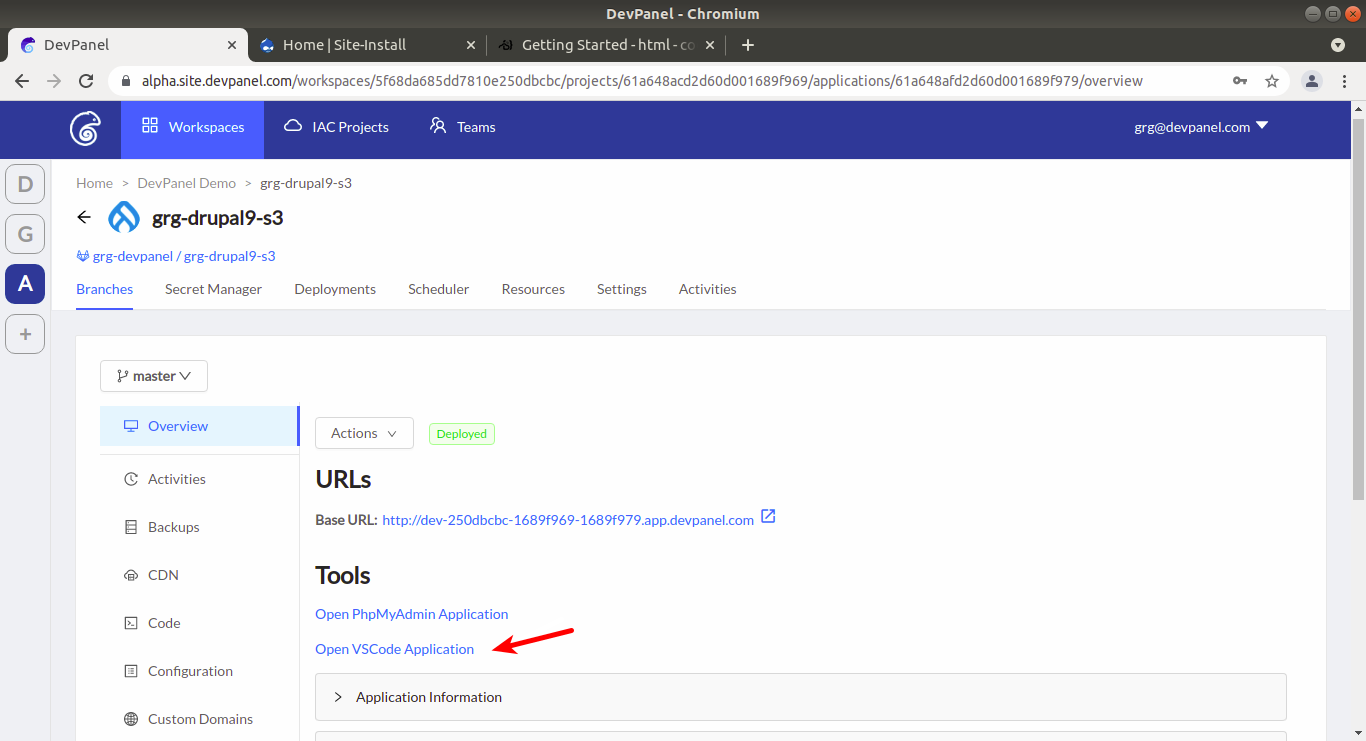
- In VSCode, open a new terminal and install the drupal/s3fs module and its dependencies by typing the following command:
composer require 'drupal/s3fs:^3.0@beta'
As of this writing, there is no stable version of the drupal/s3fs module for Drupal 9, so it is required to specify the beta version of the module as shown in the command above. When a stable version of the module becomes available, the command required will be as simple as:
composer require drupal/s3fs
- Enable the newly installed module by typing the following command in the terminal:
drush -y pm:enable s3fs
Configuring Drupal's s3fs module
- In VSCode, open the file settings.php (typically
sites/default/settings.php) and add the following lines to the end of the file:$config['s3fs.settings']['bucket'] = '<bucket>'; $config['s3fs.settings']['public_folder'] = '<key>'; $config['s3fs.settings']['region'] = '<region>'; // $settings['s3fs.access_key'] = '<access_key>'; $settings['s3fs.secret_key'] = '<secret_key>'; // $settings['s3fs.use_s3_for_public'] = TRUE; $config['s3fs.settings']['use_https'] = TRUE;
Replace <bucket>, <key>, <region>, <access_key> and <secret_key> in the snippet above by copy/pasting these values from the S3 bucket information in the "Resources" tab as mentioned at the end of the section Creating an S3 bucket for your application.
Do not forget to remove the angle brackets from the snippet above!
Note that the string key (name of the folder) ends in slash (/), and it must be copy/pasted this way. If the slash is omitted, the the s3fs module will silently fail. So, the line 2 of the snippet above must look something like that:
$config['s3fs.settings']['public_folder'] = 'undefined-1638287852944/';
Once again, remember about the trailing slash!
NOTE: At the time of this writing, multiple DevPanel applications can use the same S3 bucket as long as each of them is using a different key (folder name) specified in the S3 bucket information.
Save your changes to settings.php.
By default, the permissions of settings.php are set to read-only, so VSCode might ask you if it is OK to overwrite the file bypassing the permissions. Confirm this operation.
- Login as admin to your Drupal site and go to "
Configuration -> S3 File System -> Actions" (/admin/config/media/s3fs/actions) and click on "Validate":
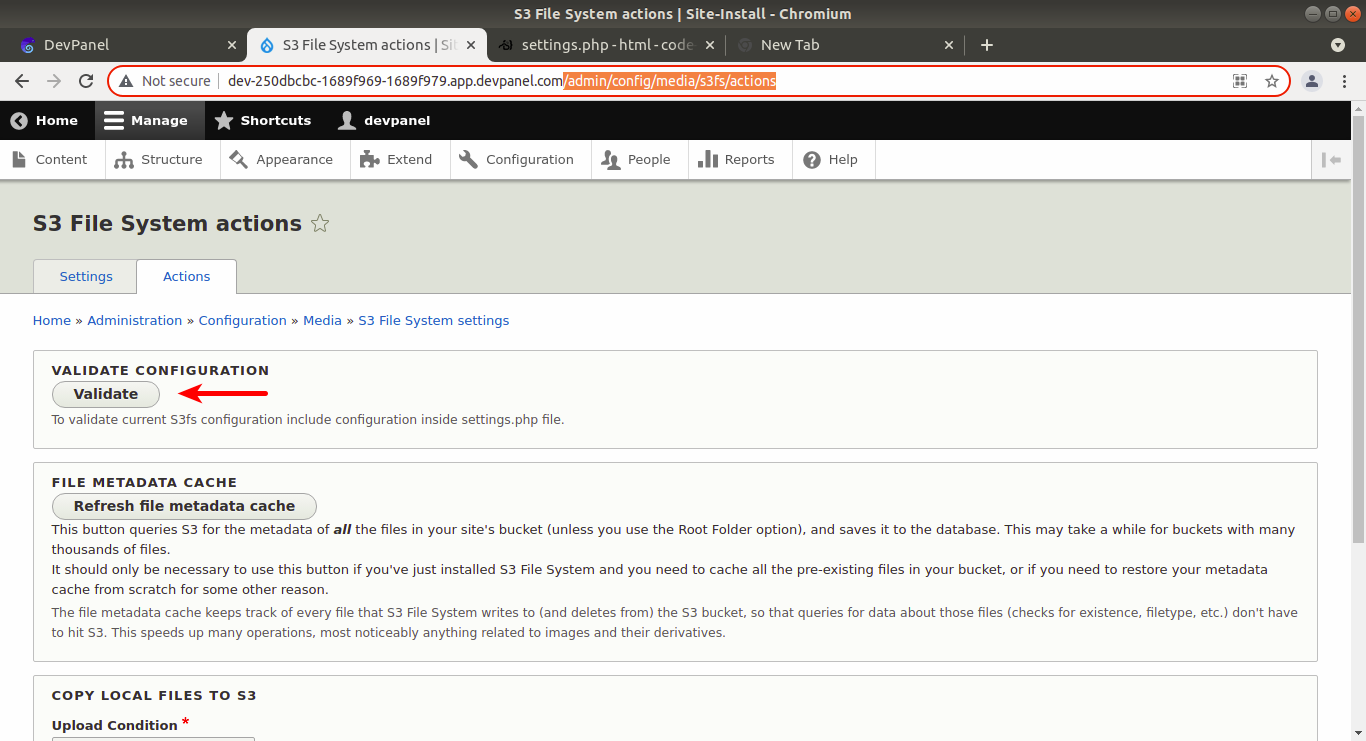
If, and only if, the S3 settings which you specified in the settings.php file are correct, you will see the message "Your configuration is working properly":
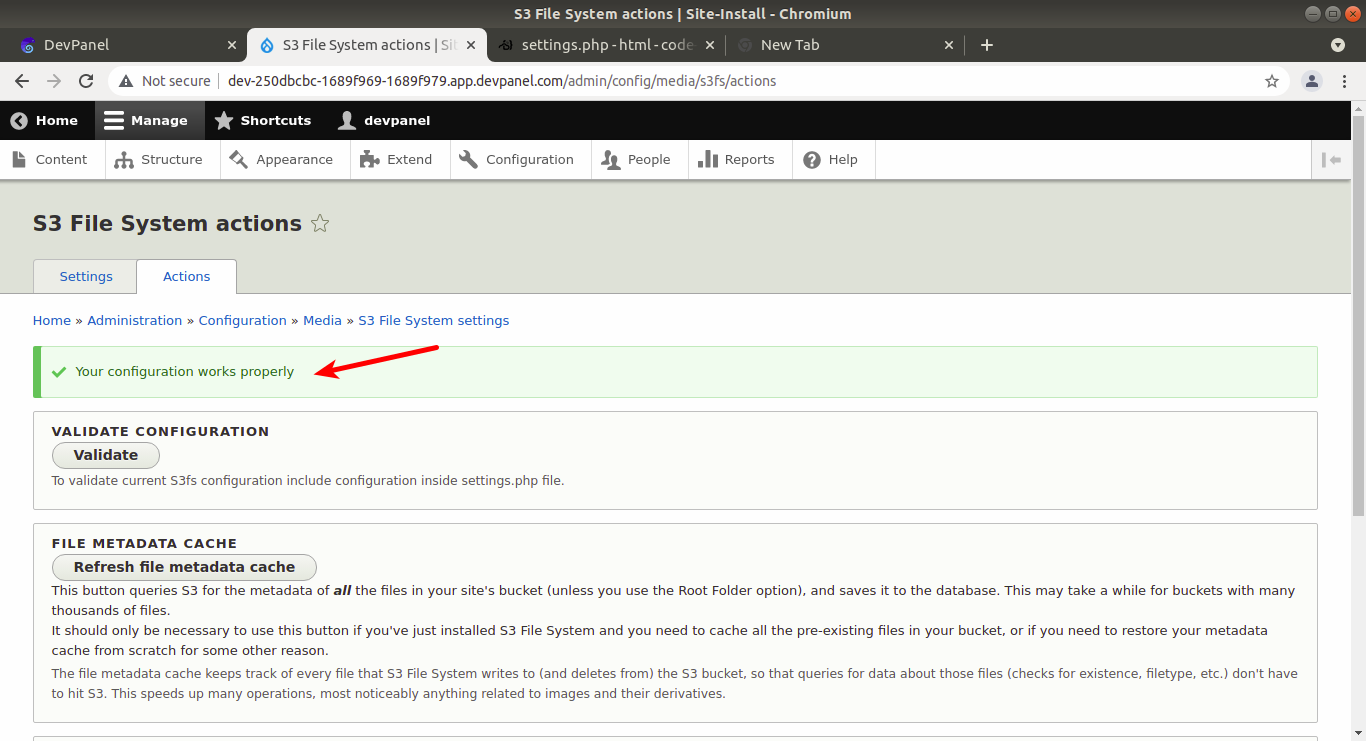
Otherwise, you will either see an error message explaining what is wrong, or will not see any message at all.
At the time of this writing, if you don't see no messages at all after clicking on "Validate", it might mean that the trailing slash of the key (folder name) value is misssing.
- Still under the "Actions" tab of "S3 File System settings", click on "Refresh file metadata cache":
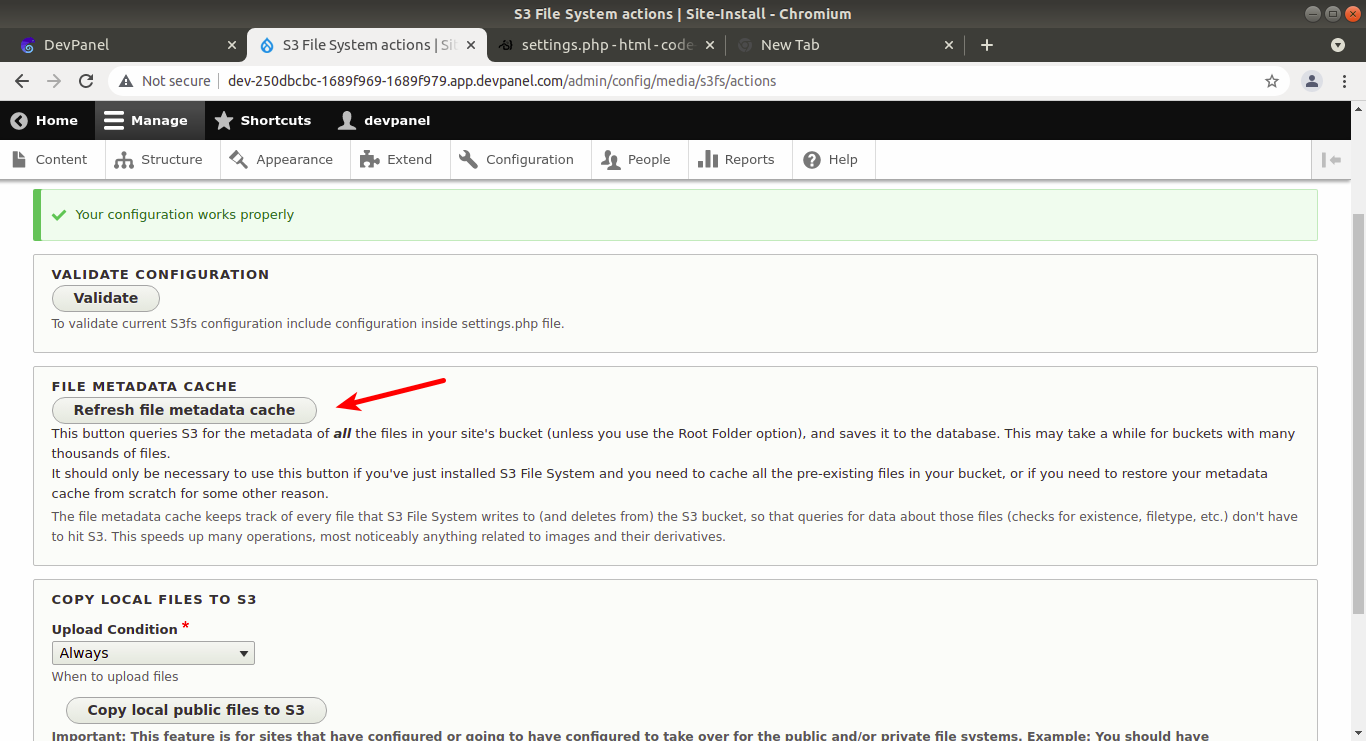
You'll see a progress bar, and if the operation completes successfully, a message similar to "The cached list of files has been refreshed in 00:00:37 (hh:mm:ss)" will be displayed.
- Still under the "Actions" tab, click on "Copy local public files to S3":
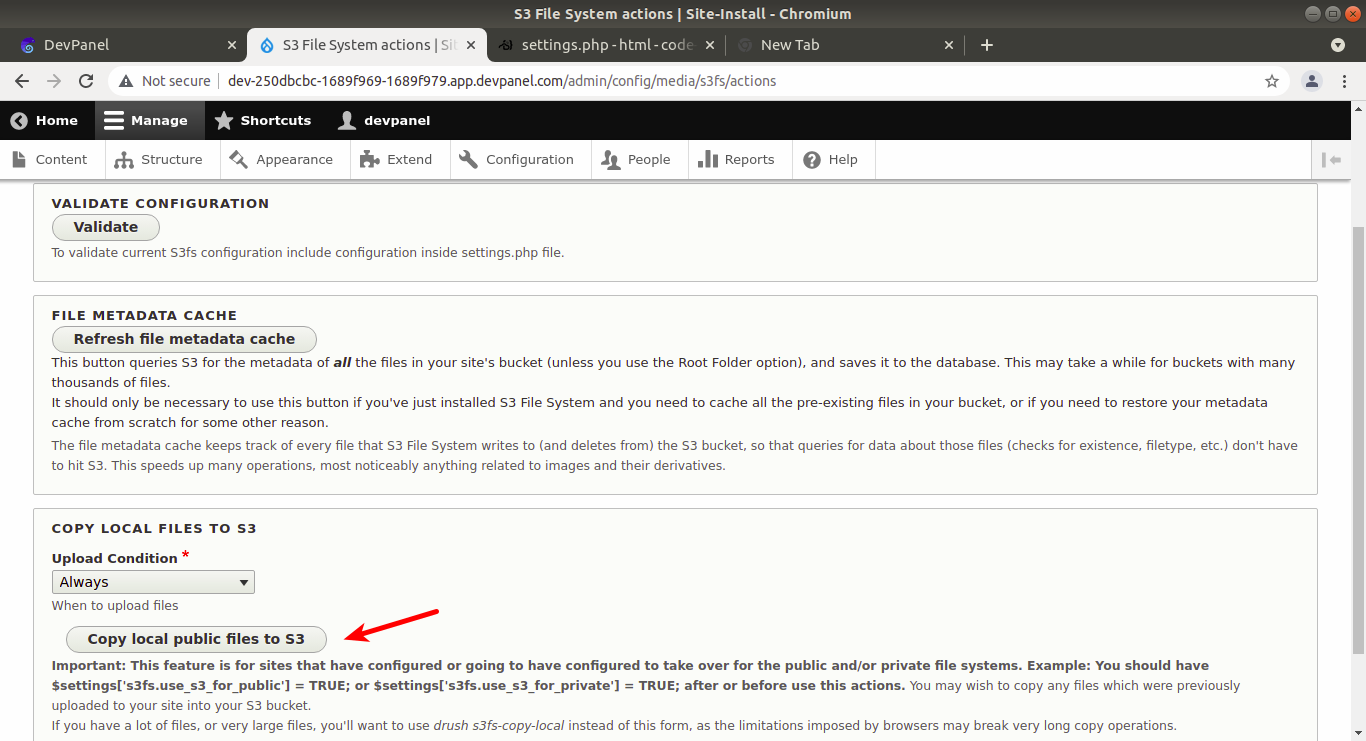
Again, you will see a progress bar, and the duration of the operation will depend on the total size of your public files. In the end, you will see a message similar to "Copied local public files to S3 in 00:00:13 (hh:mm:ss)".
- We are almost done, but there is one important final step: after all the files, including
.cssand.js, were copied to S3, we must clear all caches to make Drupal retrieve these files from the new location. As a Drupal admin, go to "Configuration -> Performance" (/admin/config/development/performance) and click on "Clear all caches":
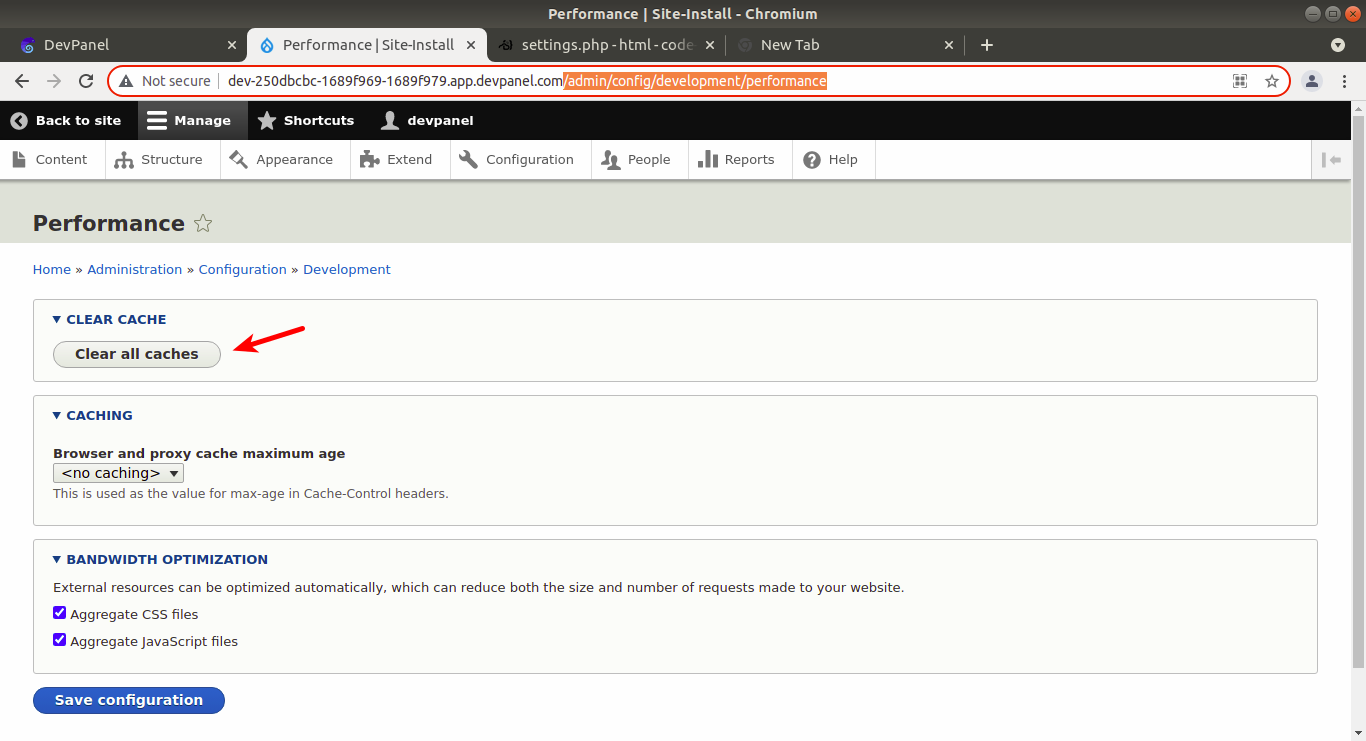
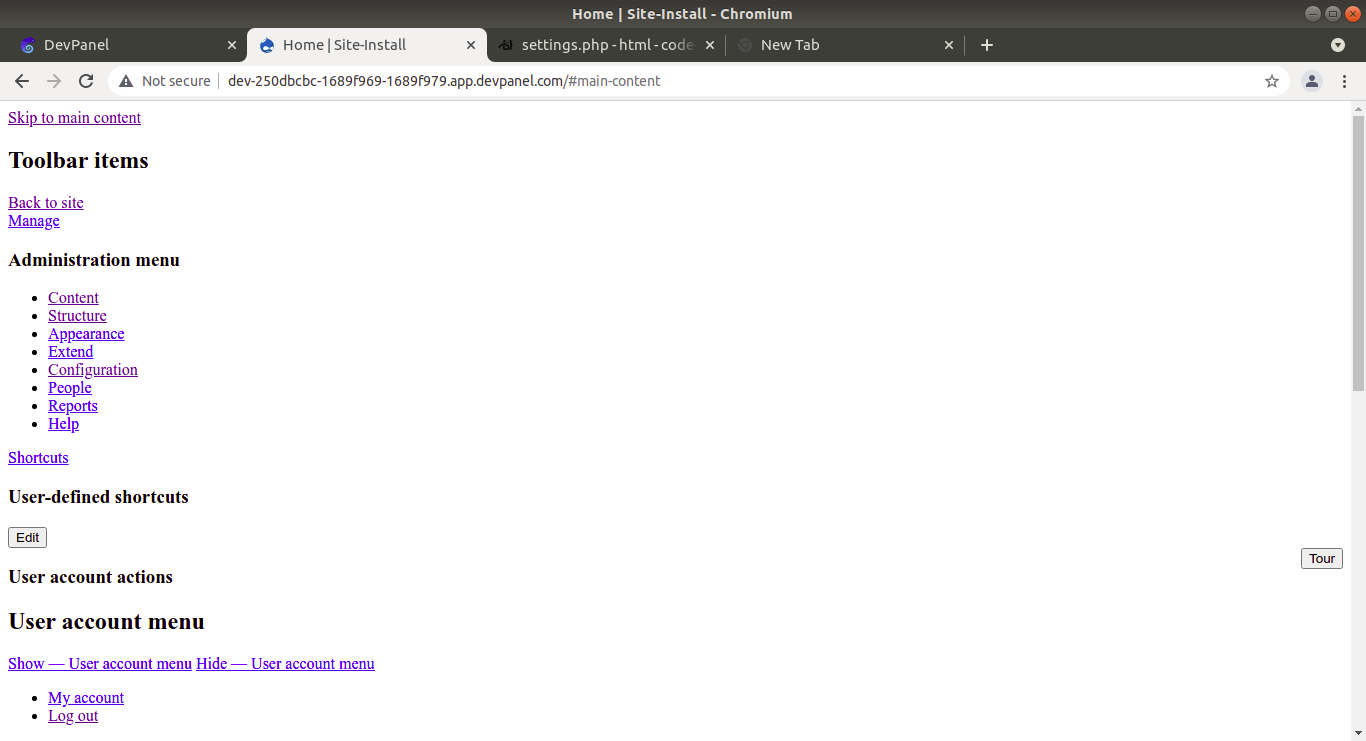
If this final action is not performed, you might see a broken site layout when going to the Drupal home page due to missing .css files. It would look similar to this:
Testing s3fs: serving public images from S3
Now let us create a Drupal front page with an image to check if the image is really served from S3:
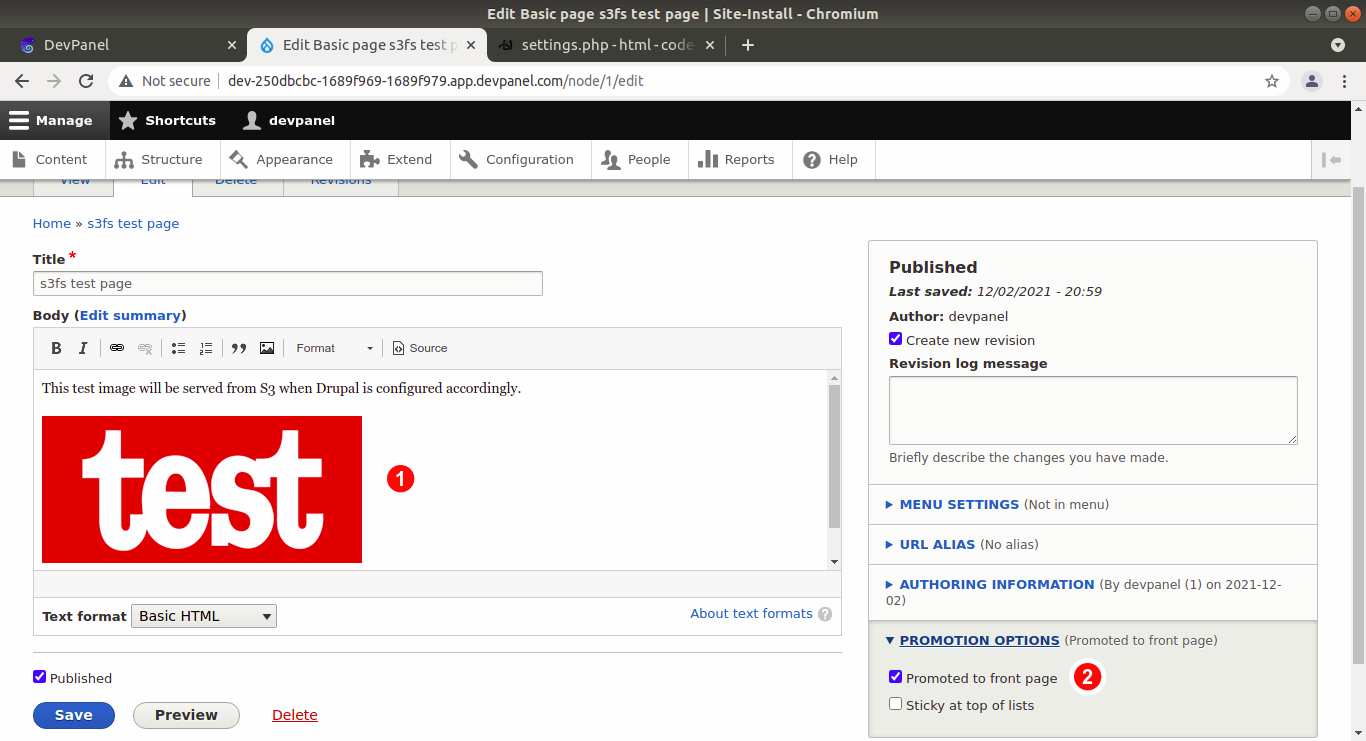
- Upload any test image you like
- Check "Promoted to front page"
Save the changes and go to the home page of you Drupal site to see if the image is there.
If Drupal defaults are used, you will not see the full-size image you expect, but instead you will see:
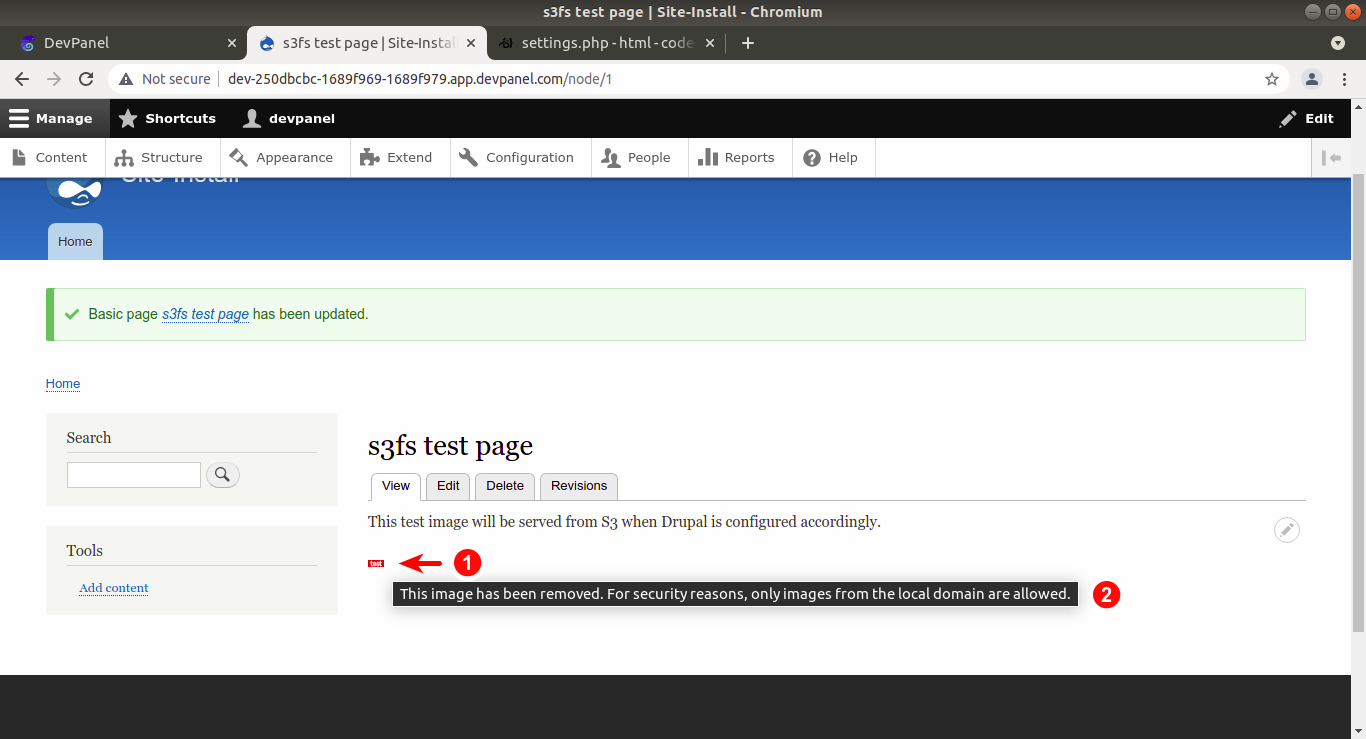
- Image placeholder (tiny, almost invisible version of your image)
- If you hover with the mouse over the placeholder, you will see the popup messsage: "This image has been removed. For security reasons, only images from the local domain are allowed".
Allowing public images from external domains in Drupal
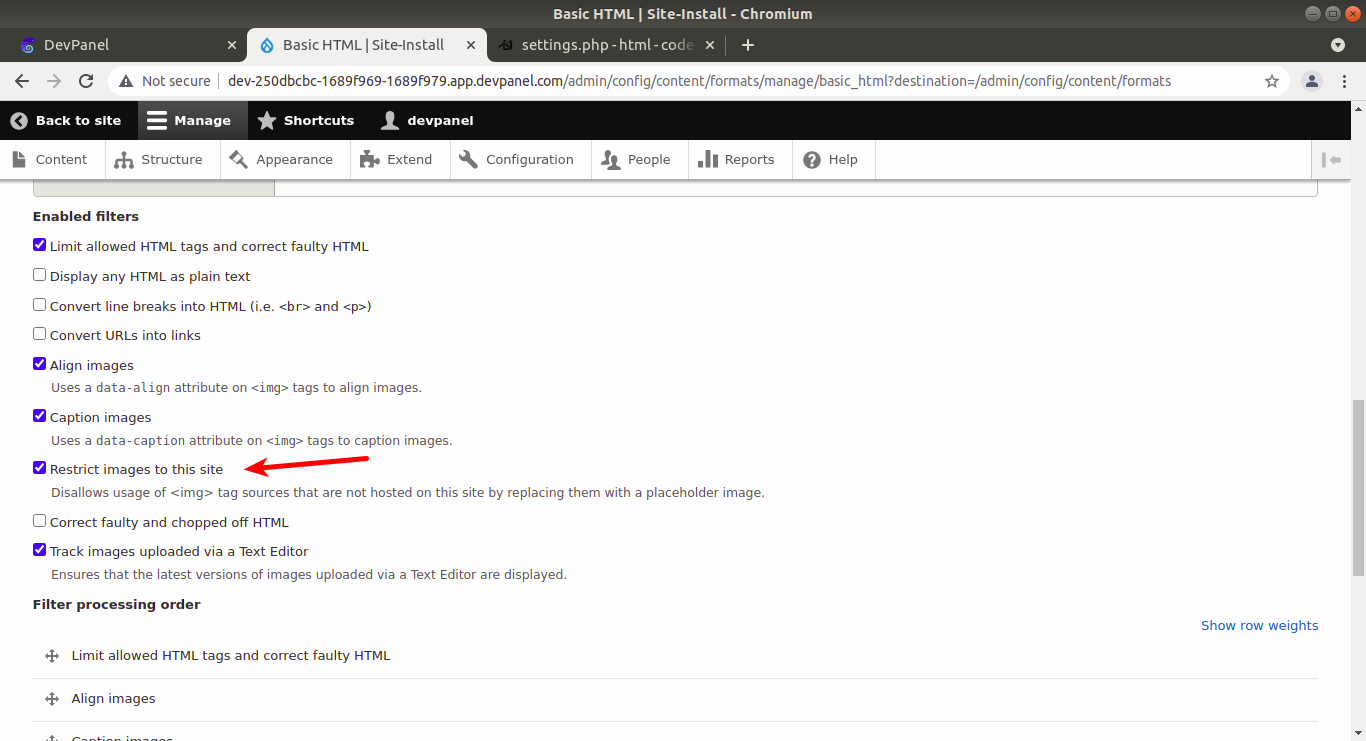
The issue is that the image is removed by a special filter that may be on the default for the text format in which the Drupal page was created (in our case, it is Basic HTML).
In order to turn off this restriction, as a Drupal admin, go to "Configuration -> Text formats and editors" (/admin/config/content/formats), find the "Basic HTML" line in the list of formats and click on Configure:
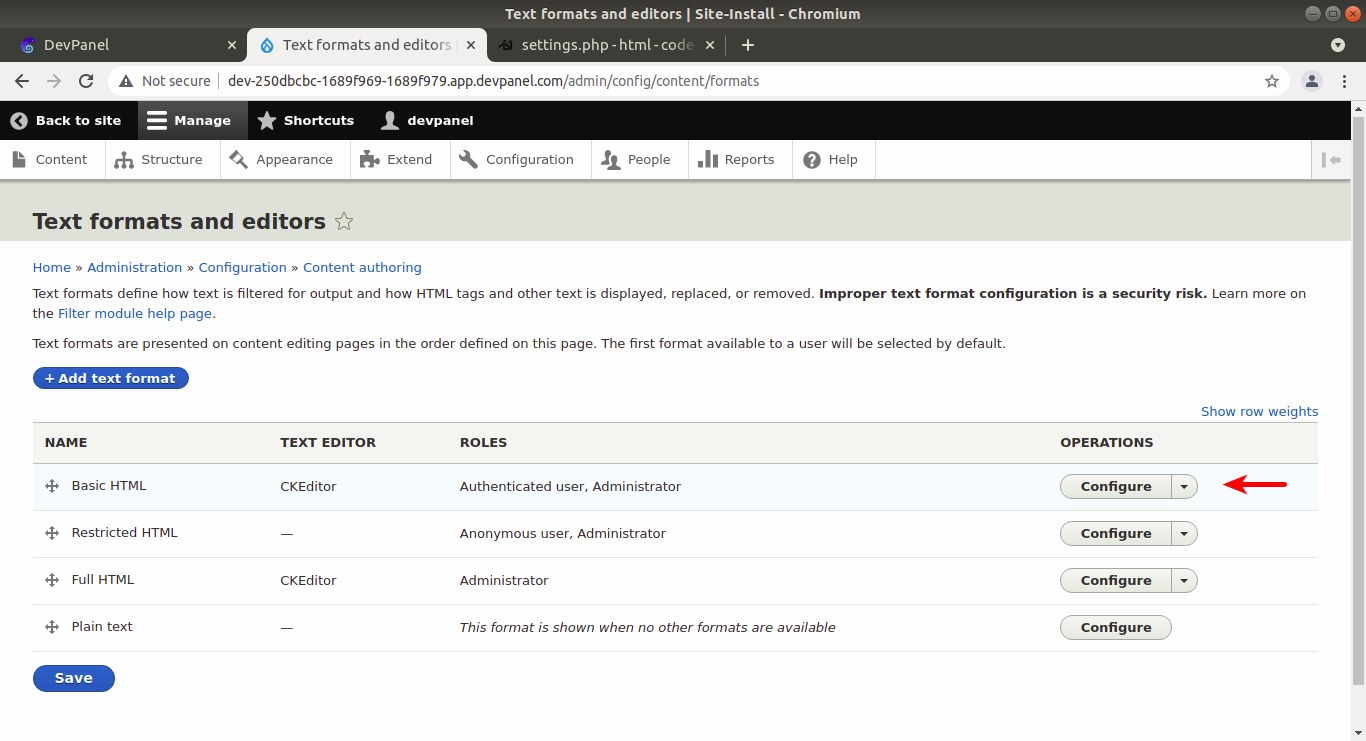
On the configuration page, scroll down to "Enabled filters" and uncheck "Restrict images to this site":
Click on "Save configuration" at the bottom of the page, then go the Drupal home page again.
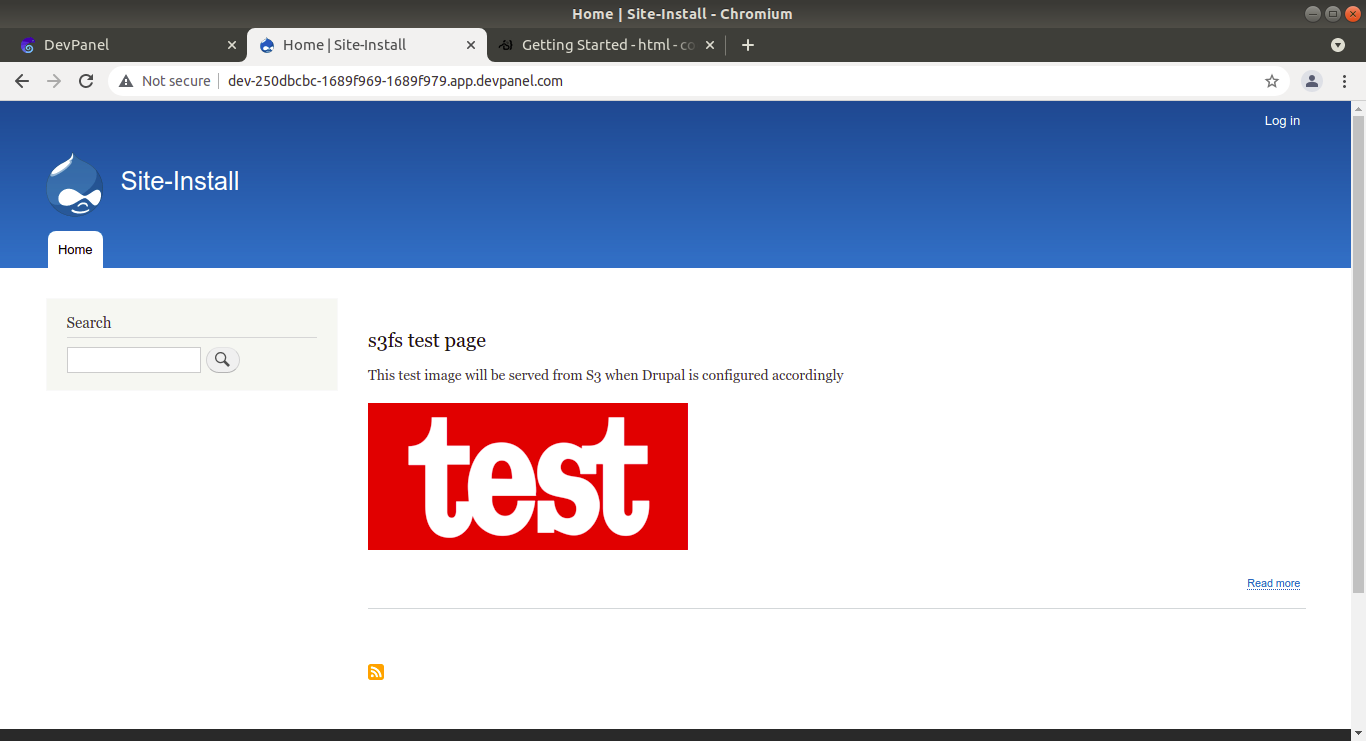
Now that the restriction is turned off, you should see the full-size image:
Verifying that public images are really served from S3
On the screenshot above, right click on the image and select "Copy image address" (or something similar, depending on your browser), then check what the address is.
If the address looks like https://devpanel-cluster-vvybhkeh.s3.us-west-2.amazonaws.com/undefined-1638287852944//inline-images/test.png (AWS S3 bucket ending in amazonaws.com as the domain name), everything is OK!
If the address looks like http://dev-250dbcbc-1689f969-1689f979.app.devpanel.com/inline-images/test.png (the domain name of your Drupal site ending in devpanel.com), something is wrong! Double-check all the steps described in this article.