Got your app, now what? see how you can get around...
Application Page
"Overview" tab
Here's what you can expect to see once your application is built out...
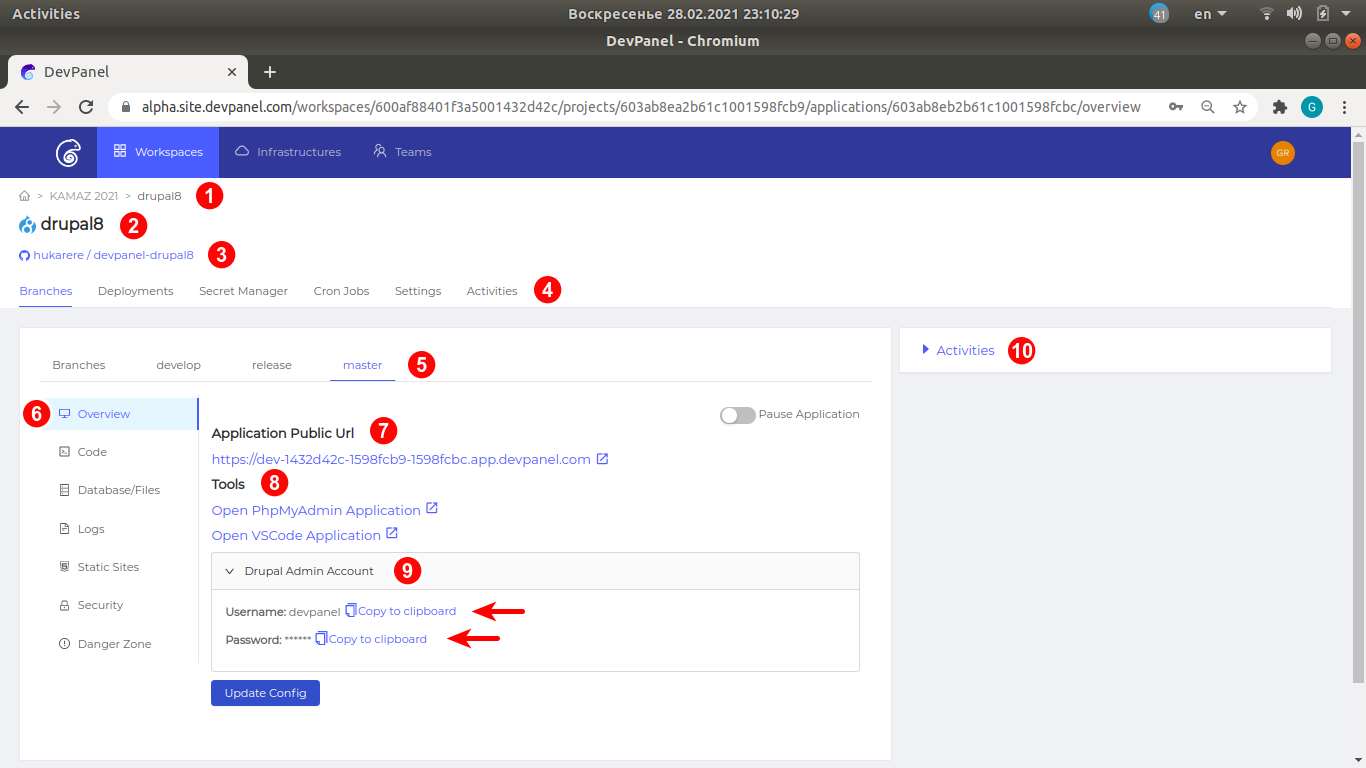
In the Workspace tab, here are some page elements you should be aware of...
- Navigation Breadcrumbs
- Project Name
- Repo Name and Link
- Project Navigation
- Navigation between branches
- Operations on the current branch
- Application Public URL Use it to open the application (web site)
- Development Tools
- Admin Account Credentials
- Activities: Build History and Logs
When clicked, you will see something like that:
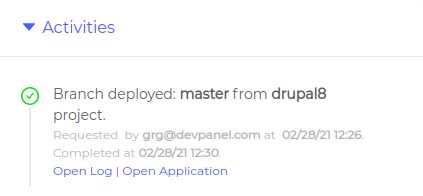 This history will grow when you perform new operations on the branch.
Menu selections may vary depending on the version of DevPanel you're on and depending on your level of access.
Notes
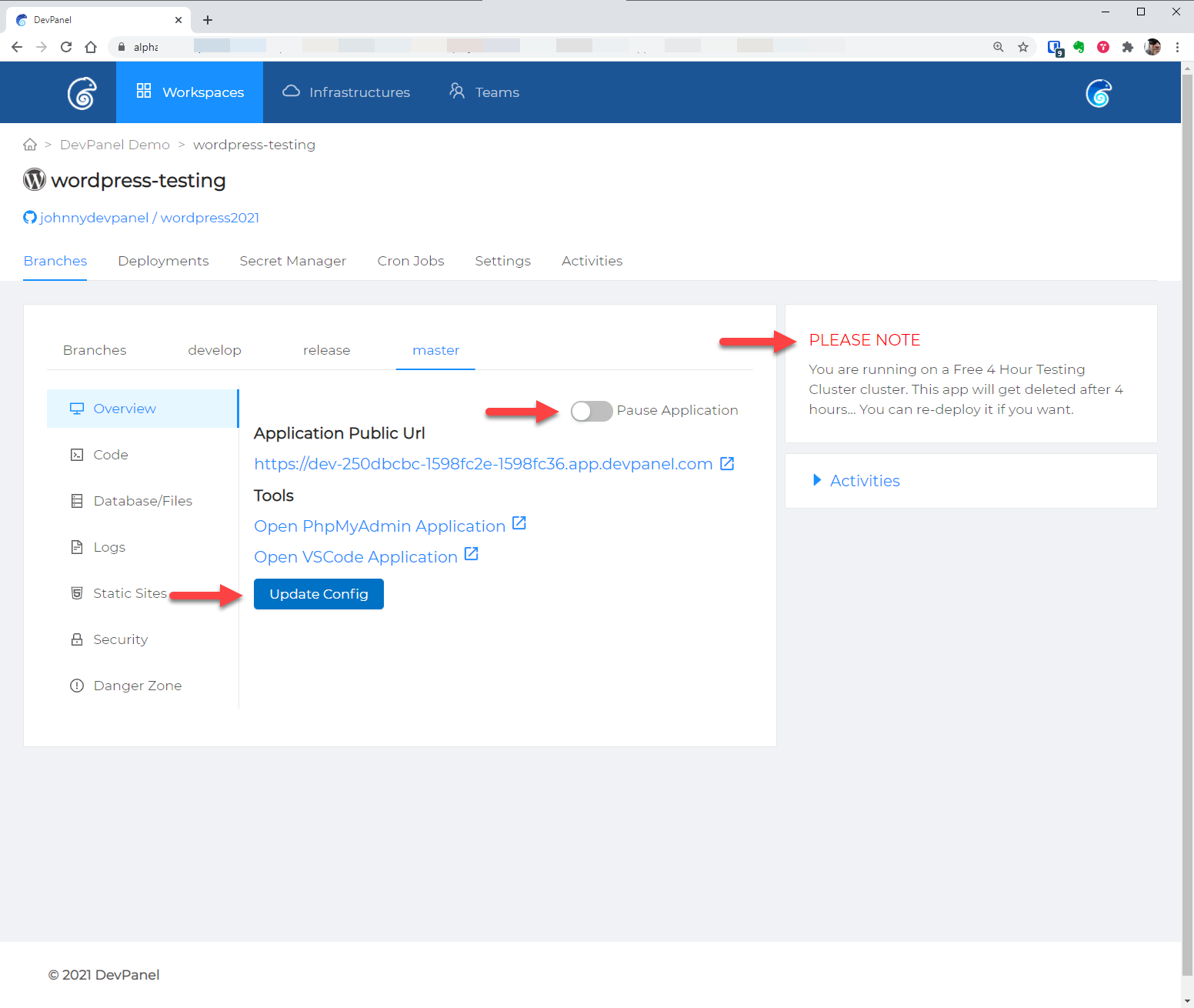
If you are on a "Testing Cluster," then your application will automatically be deleted after (n) hours.
You can also "PAUSE" or suspend applications to save system resources.
Update Config button rebuilds the container configurations. This is useful if you want to allocate more memory to your application.
Unlike the previous screenshot with the Drupal application, this one illustrates a Wordpress application, and the "Admin account" credentials are missing: they are to be selected manually during Wordpress setup.
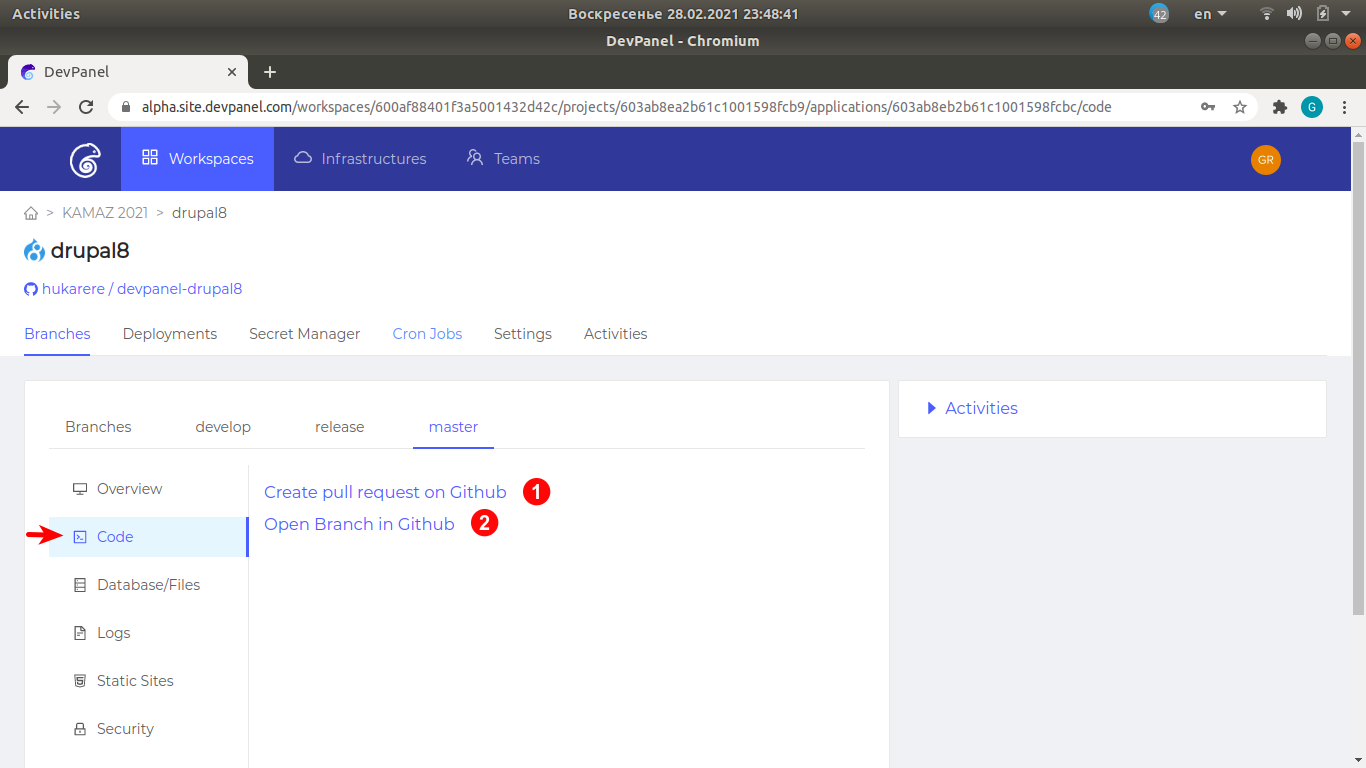
"Code" tab
Contains direct links to the pages of your git provider
"Database/Files" tab
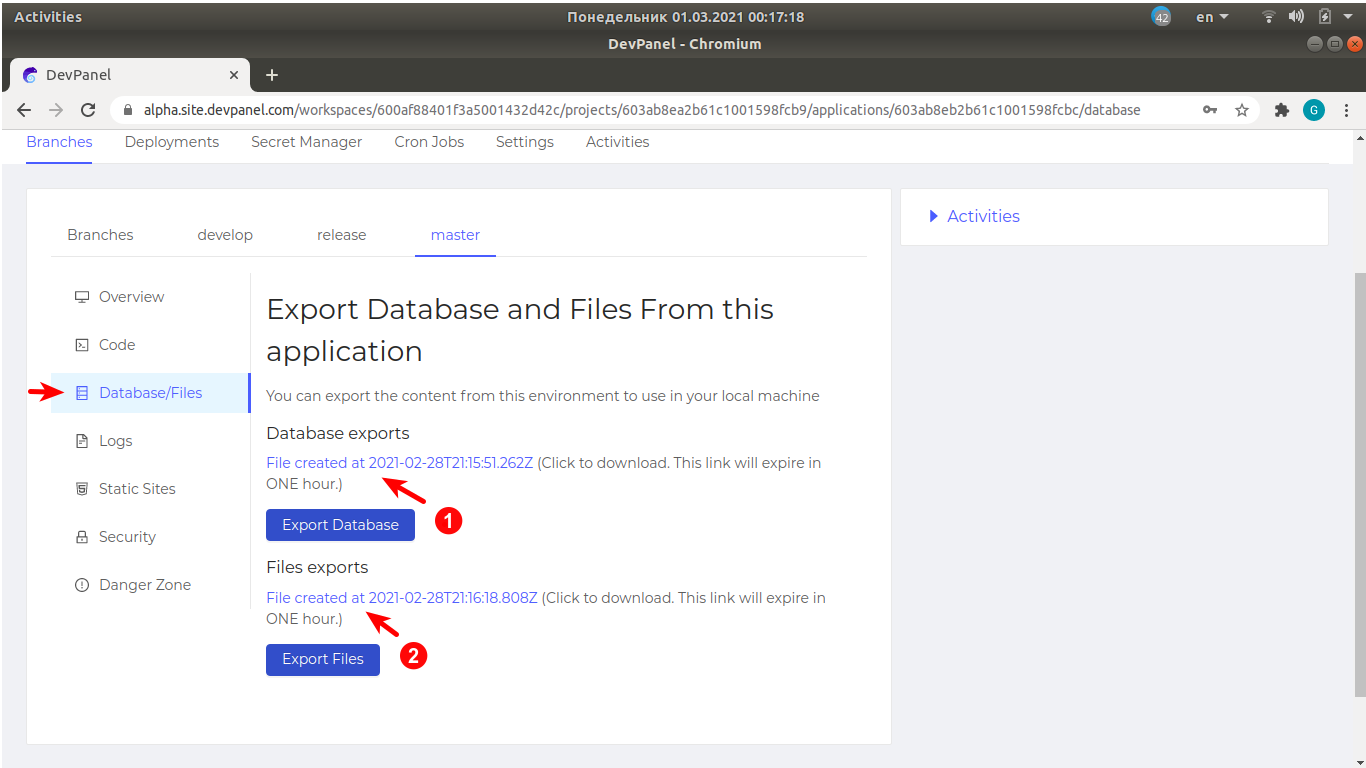
- Export database When clicked, a download link will appear to a file containing the SQL dump of the application database.
- Export files When clicked, a download link will appear to a compressed archive of static files.
"Logs" tab
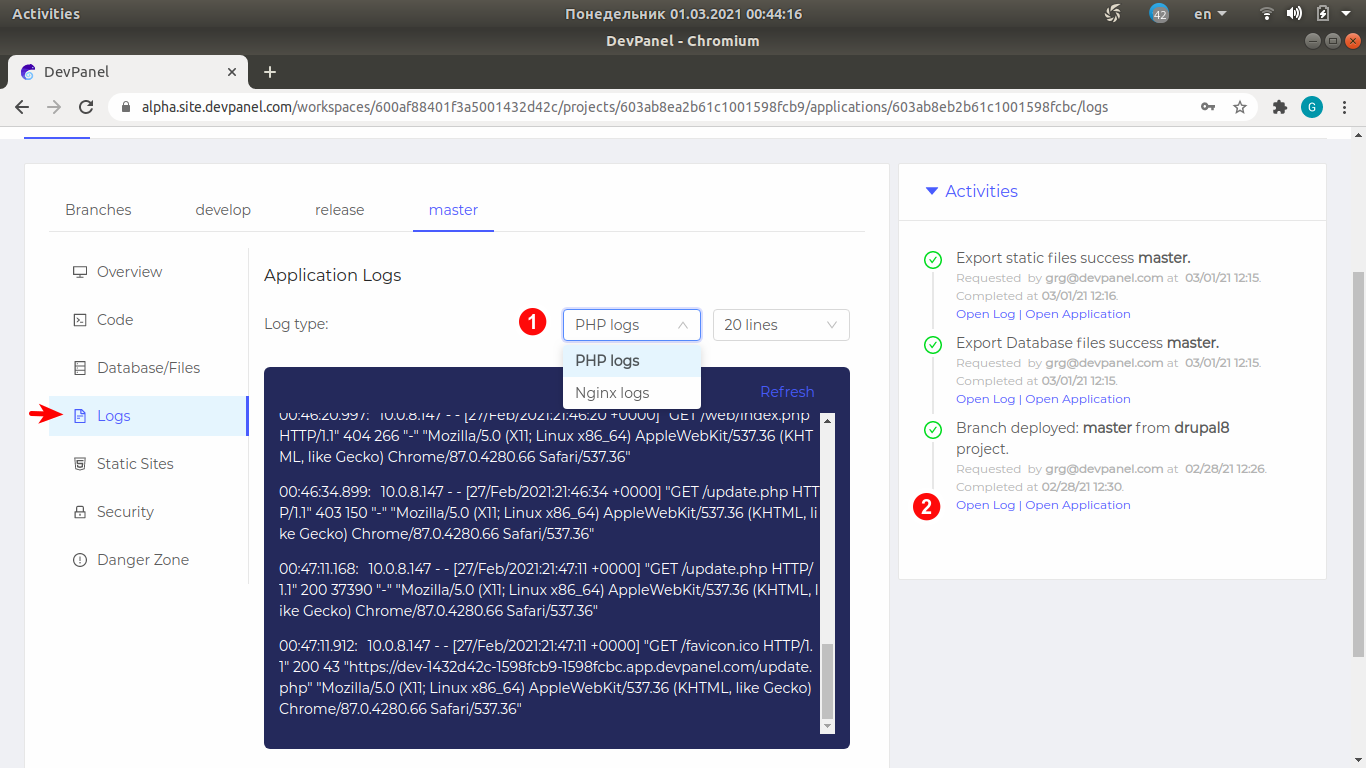
Use the "Logs" tab for looking at the logs of your application.
Standard devpanel applications usually run in two docker containers: PHP and Nginx. You can select the logs of the container you need by selecting log type, marked (1) on the screenshot.
Application logs are produced by working applications and are different from the logs produced when creating those applications or performing various operations on them. These logs can be opened using the link marked (2) under the "Activities" section on the right of the page.
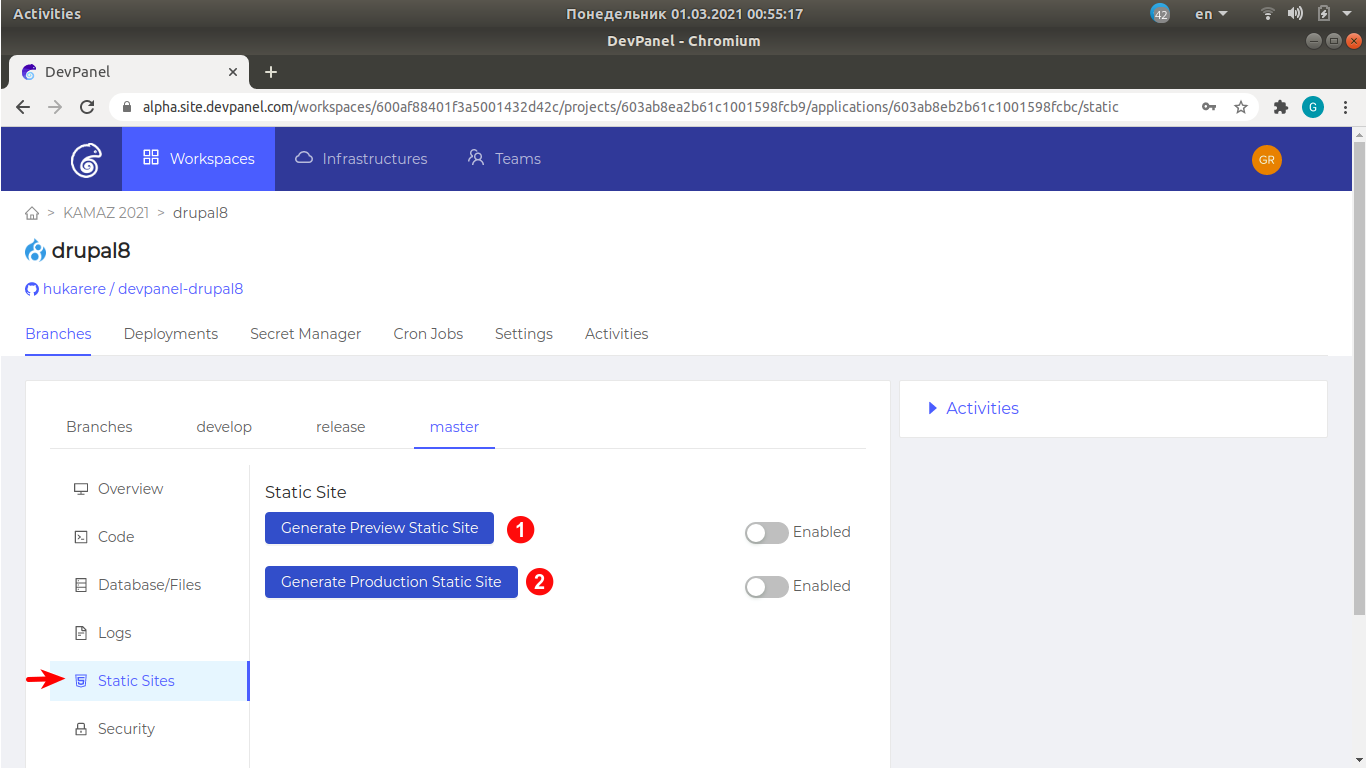
"Static sites" tab
Add explanation
"Security" tab
Use this tab to lock the application by enabling HTTP auth. This can be used, for example, to prevent public access to a site under construction. An attempt to open such a site will make the browser ask for username and password.
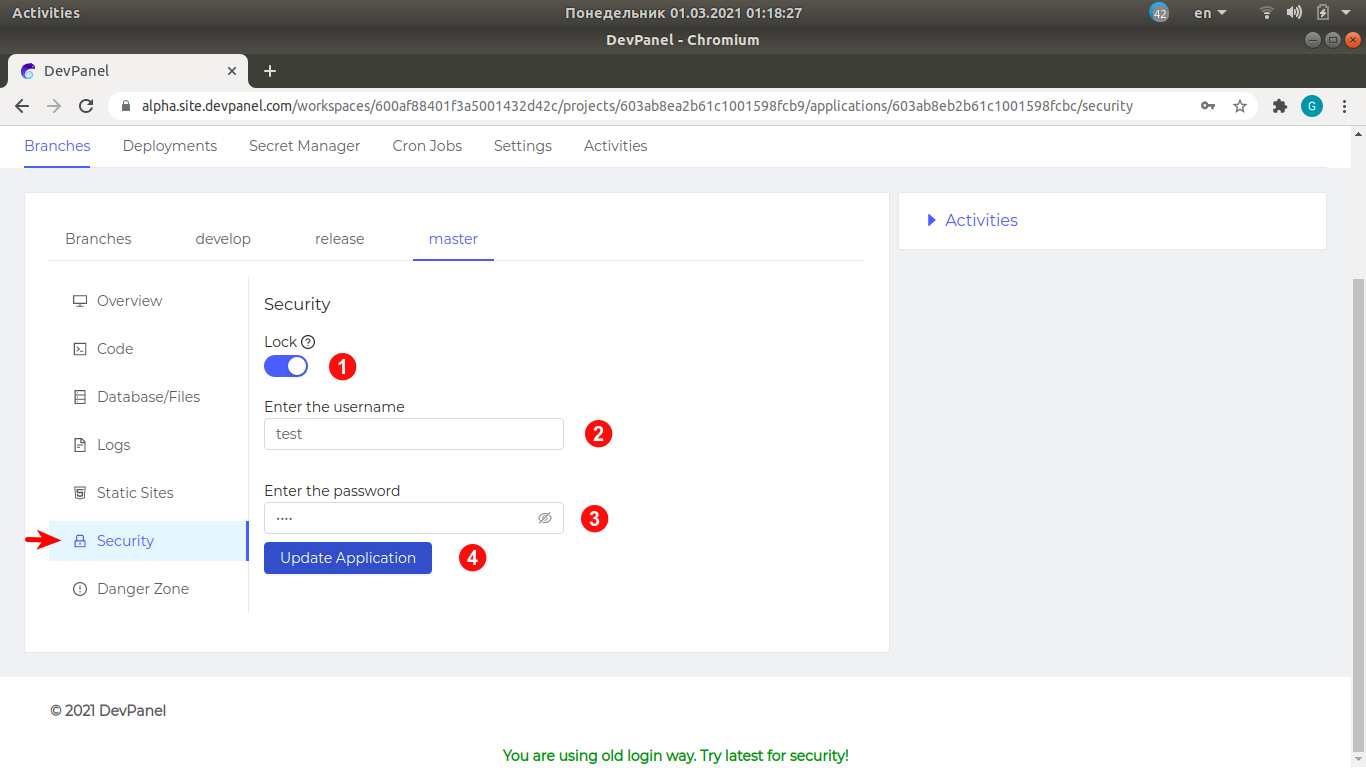
- Turn the lock on.
- Enter the username.
- Enter the password.
- Click on "Update Application". The update can take up to one minute.
The change will not take effect until "Update application" is clicked.
When the site is ready for public access, turn off the lock switch marked (1) and do not forget to click on "Update application" (4) again.
"Danger zone" tab (delete application)
In order to delete the application, select "Danger zone", type the branch name to be undeployed and click on "Delete Application".
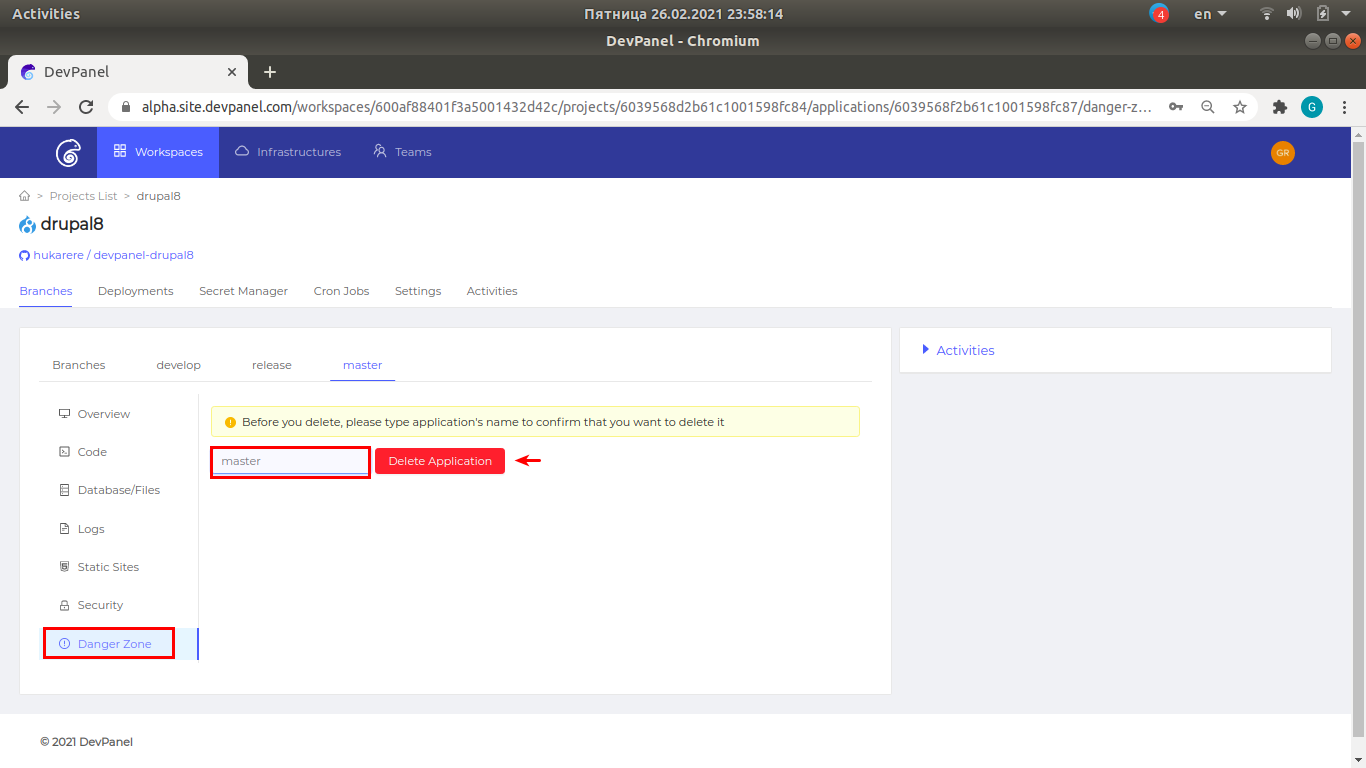
For safety reasons, you are required to type the branch name manually to prevent accidental deletion.
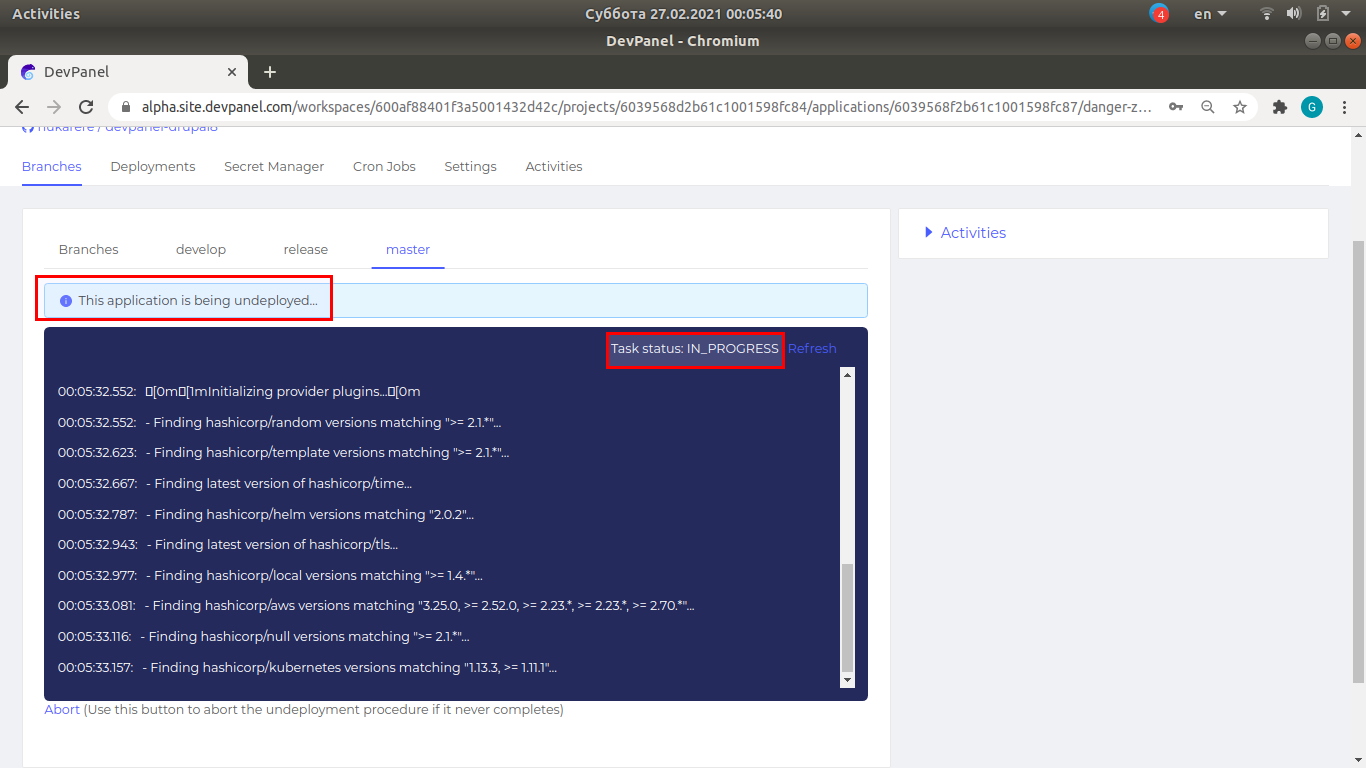
Application deletion (branch undeployment) in progress
The deletion process can take more the one minute.